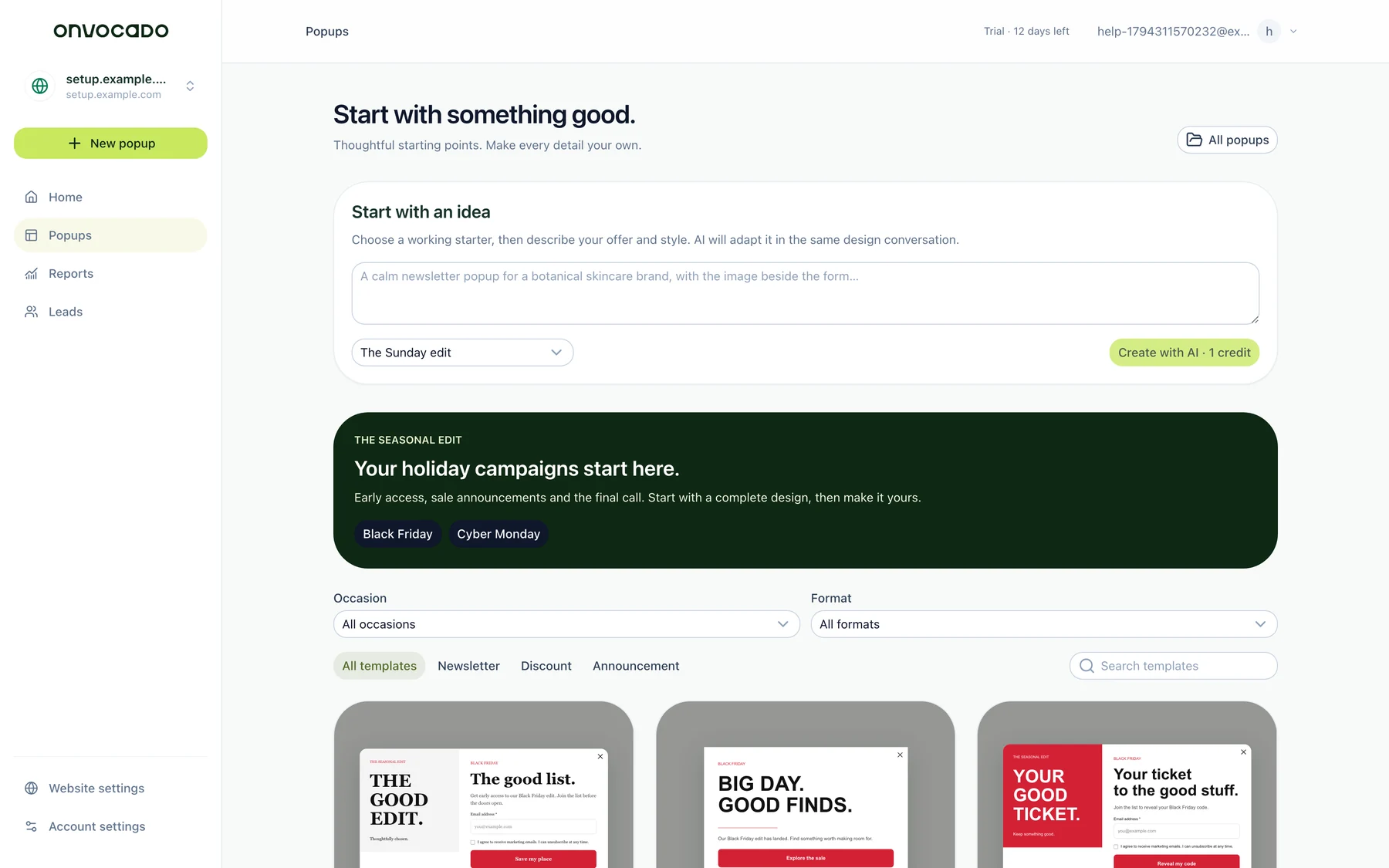
- Browse the popup library by goal, industry or occasion and open a design.
- Choose Use template to keep its original appearance. Sign in or create your account, then select or add your website if prompted. The selected template opens as a private draft.
- No AI prompt is required for this copy. The original copy, fields, artwork and screens remain available to review. Nothing is published automatically.
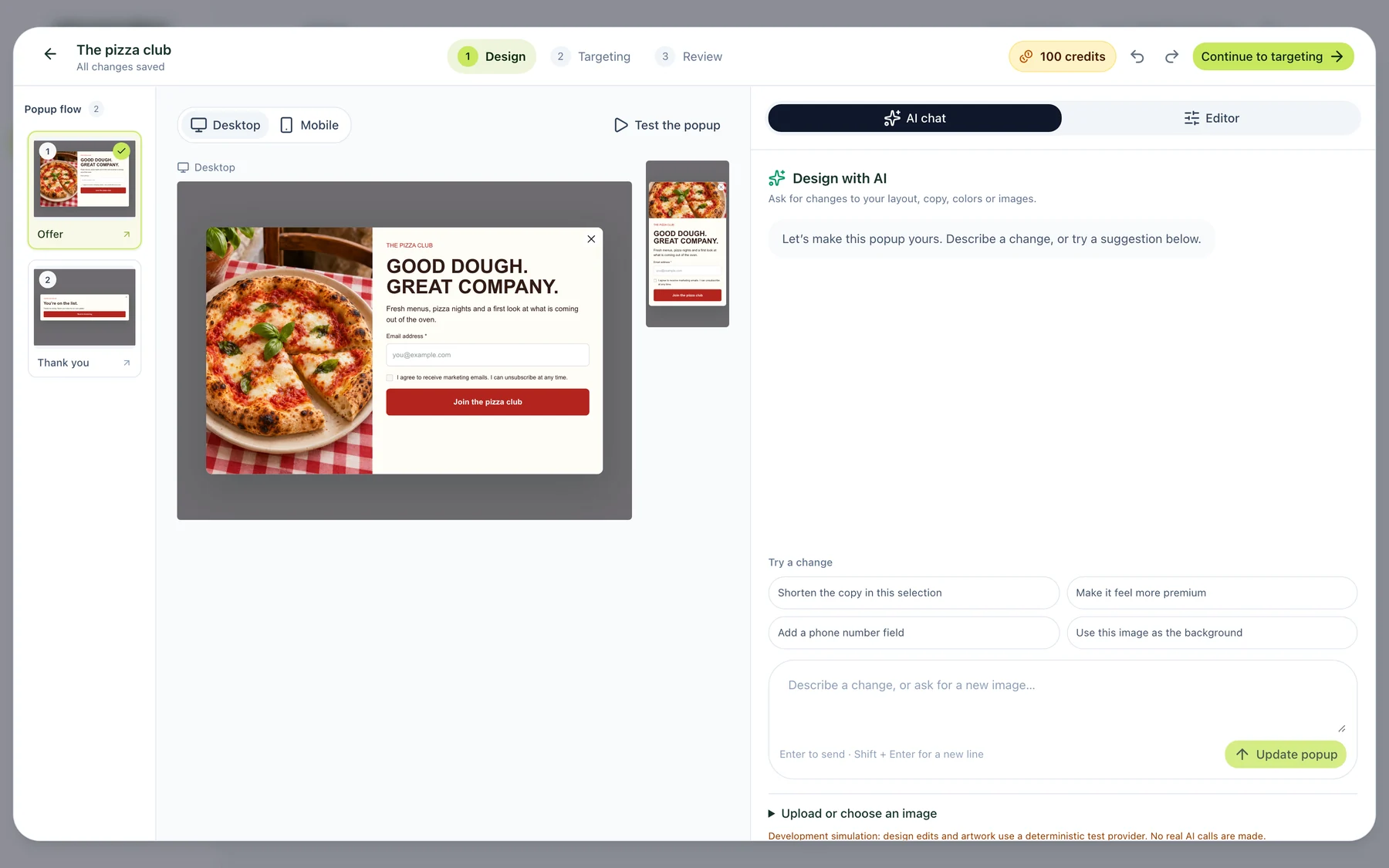
- Choose Customize with AI when you want a change. Describe the actual change, such as a new offer or brand colors, rather than asking the chat to manage draft status.
- Inspect the resulting draft, including its confirmation screen, on desktop and mobile.
Back to help center
Templates & AI design
Use a template: keep its design or customize with AI
Understand the two template choices and what happens after sign-in.
2 min read Reviewed Nov 10, 2026
01 Follow these steps
02 Check the result
Selecting a website supplies context; it does not automatically recolor a copied design. Ask explicitly if you want website branding applied. Replace example offers, codes and destination links with values your business can honor. Keeping the original design does not require an AI editing request.
03 If something is different
If a selected template cannot be opened, reopen its current library page and try again after signing in to the intended workspace. A missing template and unavailable AI editing are separate issues. For an AI failure, use AI access and credits. Then follow review and publication.
04 What the current app looks like
Was this article helpful?
Related articles
Edit a popup with AI
Write focused requests and check the actual design, fields and mobile result.
Read article
Launch your first Onvocado popup
Choose a template, review it, set targeting and verify a real signup.
Read article
Install Onvocado on your website
Copy the correct website snippet, check installation reports and test a published popup.
Read article
Didn't find what you need?
Our team is one message away. Expect a reply within a business day.
Contact support