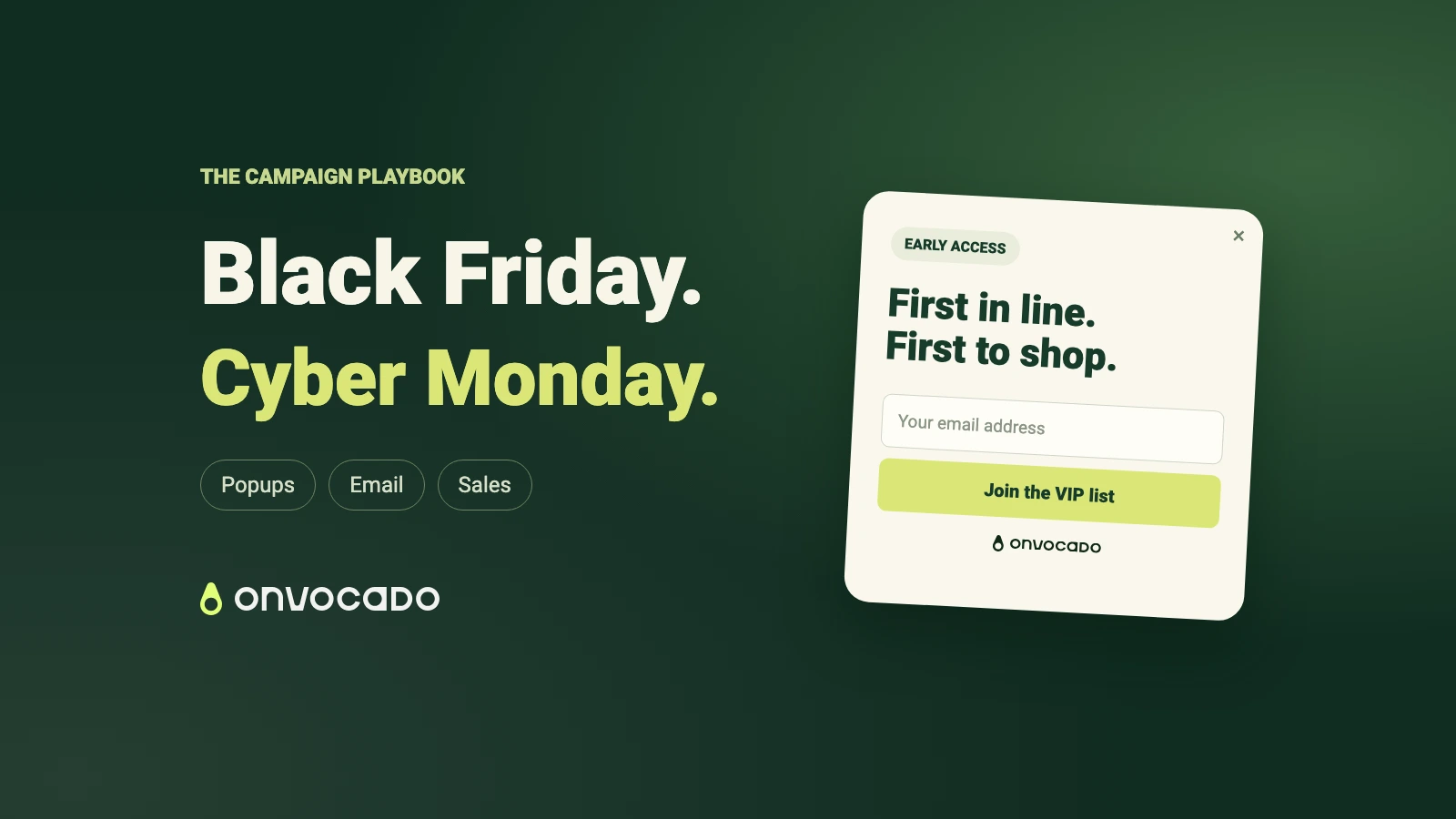
A useful Black Friday popup gives the visitor one reason to act: join an early-access list, reveal a real offer, or find the sale. Start with that job, then choose the design. Black backgrounds, red buttons and large offer text can make the message easy to scan, but the destination and follow-through still need to work.
For 2026, Black Friday falls on 27 November and Cyber Monday on 30 November. This guide uses three actual Onvocado templates from our new black-and-red collection. The screenshots show working previews; the offers are examples to replace with your own.
Choose a popup for each campaign stage
| Stage | Visitor’s next step | Design to start with | Prepare first |
|---|---|---|---|
| Before the sale | Join the launch list | Photo signup: The midnight guest list | Subscriber destination and launch email |
| During Black Friday | Reveal a discount code | Coupon popup: Scarlet code reveal | Working code, eligibility and checkout test |
| Cyber Monday | Open the live collection | Compact announcement: The red-line bar | Sale page and end time |
| No discount planned | Explore a seasonal selection | Monochrome edit or Pantry flash | Relevant collection, bundle or gift edit |
You do not need all four at once. Start with one campaign and one measurable action. Browse the Black Friday popup templates and Cyber Monday designs to compare desktop and mobile layouts.
1. Early access: a photo signup in black and red
The midnight guest list pairs a fashion photograph with a dark form and one red button. Use it before launch when the promise is a first look or an announcement, rather than a discount that is not available yet.
Suggested copy: “Get the first look at our Black Friday collection.” Button: “Join the early-access list.” Keep the benefit specific. Promise exclusive access only if you can actually provide it.

Try the early-access template. Replace the photo with your own product image and review the signup and success text. Connect the subscriber destination and schedule the promised message in your email platform. A success screen alone does not send a launch email. See our email collection use case for the lead handoff.
2. Black Friday offer: reveal a real coupon
Scarlet code reveal uses a red outline, a black background and a large offer above the email field. It suits visitors who need a clear incentive to subscribe during the sale.

The preview shows 20% off and the sample code BF20. Create the actual discount in your store first, then replace every reference in the opening and success steps. Check product exclusions, minimum spend, expiry and whether it combines with other discounts. Showing a code does not apply it automatically at checkout.
Open the coupon template. If the offer is available to everyone, consider a direct announcement instead of adding an unnecessary email step. Our coupons and offers guide explains the setup context.
3. Cyber Monday: a compact sale announcement
The red-line bar keeps the message short: a Cyber Monday heading, one sentence and a red button linking to the live selection. Use it when visitors need a route to the sale rather than another form.

Preview the Cyber Monday bar. Replace the example destination with the exact sale page and test the published link. The library preview keeps navigation local, so clicking a preview button is not proof that your store destination works.
For a genuine final-hours campaign, the separate Last call template includes a countdown. Set the real deadline and timezone; the sample date is not your campaign schedule. Do not reset a timer to create a false deadline.
Watch the preview workflow
This short recording shows the local template preview: open the design, switch to mobile, enter a fictional email and reach the success screen. It demonstrates the layout and interaction. It does not install a campaign, store a lead or send an email.
Text walkthrough: open The midnight guest list → choose Mobile → enter an email → select the consent checkbox → submit → review the success message. Then open an editable draft with “Use template” and configure the real campaign.
Use AI to adapt the design, then check the result
Open the template as a draft and describe your brand, offer and audience. These are suggested prompts, rather than a recording of AI output:
“Adapt this early-access popup for a small skincare store. Keep the black background and red button, use our product photo, and promise a first look at our Black Friday collection. Do not add a discount or countdown.”
For a follow-up edit: “Shorten the mobile heading, keep the close button visible, and change the button text to Join the launch list.” Review every step after an edit, including consent and success copy. For a recorded creation workflow, follow how to create an AI popup.
Check mobile timing and dismissal
Check the actual mobile preview before publishing: the heading should fit, the email field should stay readable, and the close button should be easy to reach. Keep important content accessible and avoid showing several campaigns on top of one another.
Choose targeting, timing and frequency in the campaign settings. A short delay or a relevant page can be a starting point, but there is no universal delay that converts best. Exclude checkout where appropriate and test what happens after someone dismisses the message. A bottom bar can still cover essential controls, so check the real page.
Google’s guidance on intrusive interstitials recommends making content easy to access and using smaller banners where possible. It does not mean every popup causes a search penalty.
Before launch: test the whole journey
- Offer: replace the example discount, code, image, collection URL and deadline in every step.
- Form: test required fields, validation, consent text and the success screen on desktop and mobile.
- Delivery: make a test submission on the installed campaign and confirm the contact arrives in the intended destination. Check any follow-up email separately.
- Store: open the sale link and try the code in a test checkout with eligible and excluded products.
- Display: check the close button, targeting, repeat visits, other widgets and the campaign’s end time on the actual website.
The public library preview cannot verify your installation, email connection or checkout. Complete those checks in your own campaign before sending traffic.
Measure one action at a time
For signup campaigns, compare successful signups with unique visitors who saw the popup, using the same period and counting method. For announcements, compare clicks with views. Keep clicks, leads and purchases separate: a click is not a completed order.
If you assess revenue, use your store’s order data and state the attribution window and method. Seasonal traffic, discounts and stock can all affect results. Change one major element at a time and avoid calling a small sample a reliable winner.
Black Friday popup questions
Do Black Friday popups need a discount?
No. Early access, gift selections, new collections and clear shipping information can give visitors a reason to act without a coupon. Make sure the promised benefit is real.
Should the design be black and red?
It is a useful seasonal direction, not a requirement. Keep your brand recognizable, use strong contrast and make the action easy to find. The library also includes monochrome and photo-led options.
Can I use the same popup for Cyber Monday?
Reuse the layout if it fits, but review the heading, offer, links, code and schedule. Remove Black Friday wording and expired terms from every step.
Choose a Black Friday template, preview it on mobile and configure one complete campaign before adding another.