You have an offer, a brand and a website. The missing piece is a popup that brings them together without turning a small campaign into a design project.
An AI popup builder helps you get there by turning written instructions into an editable popup. But the useful part is what happens after the first draft: can you change the layout, add a field, replace the image or create a second step without starting again?
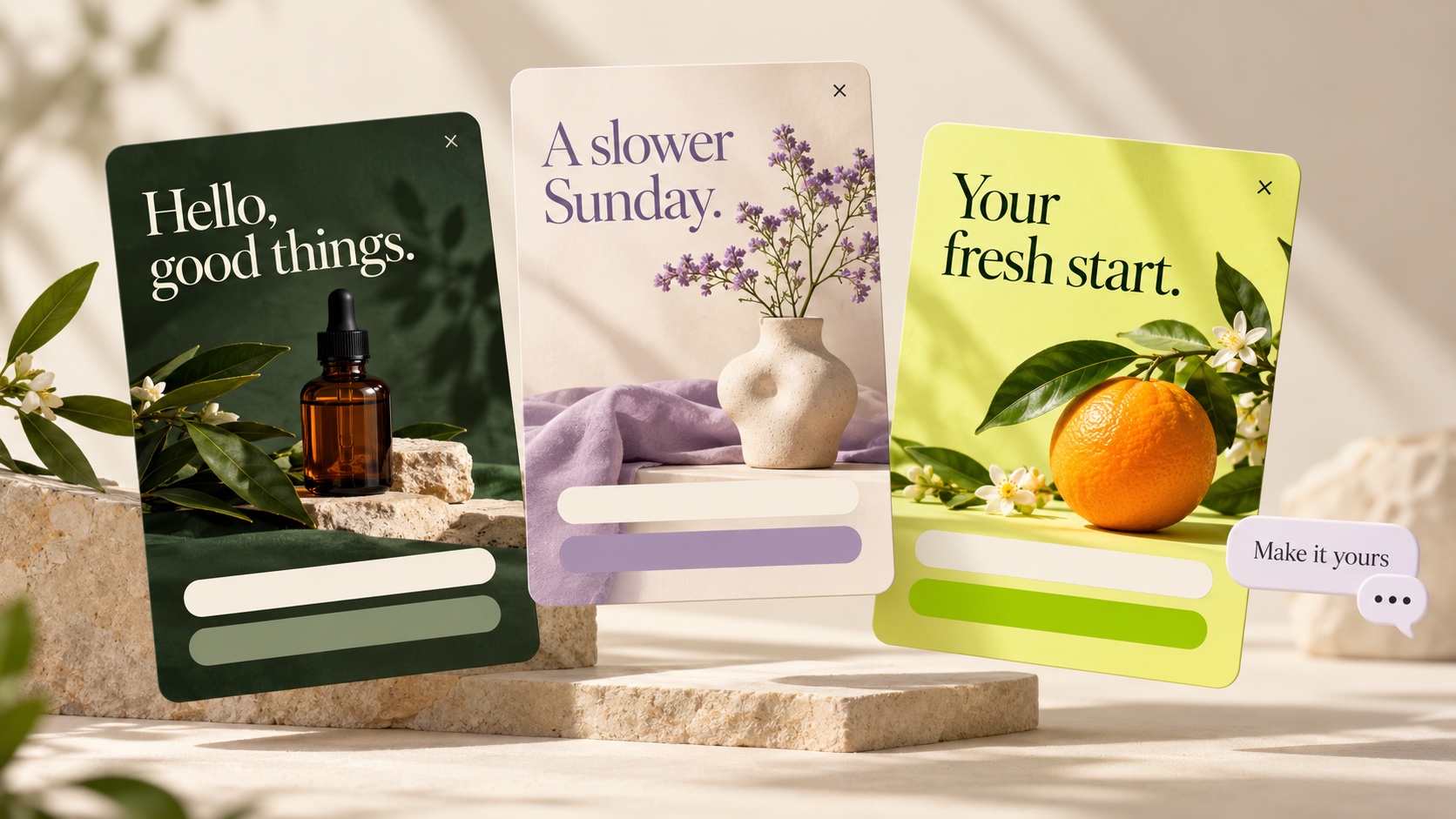
This guide explains what to look for, then gives you eight original popup examples with prompts, sample copy and follow-up edits. Pick a goal, adapt a brief and review the result before it reaches your visitors.
The short answer: Start with a specific campaign goal, describe the offer and design, then improve one part at a time. Check desktop and mobile, configure display rules, test the form and measure actual submissions. AI can help you build; you still decide what is worth publishing.
What is an AI popup builder?
An AI popup builder is a tool that uses written instructions to create or modify a website popup. Depending on the product, it can help with copy, visual styling, artwork, form fields and the sequence of screens a visitor sees.
The result should be a working, editable campaign. A picture of a popup is a design reference; it cannot collect an email address or show a visitor their confirmation step.
There is also a practical difference between an AI copy assistant inside a conventional editor and a builder that can change the popup itself. Before choosing a tool, ask it to make a structural edit, such as adding a step or moving an image behind the content. That reveals more than a headline rewrite.
In Onvocado’s AI popup builder, the starting point is a template. Add your website’s branding, use chat to shape the design and content, then set targeting, review and publish.
Choosing an AI popup builder
Choose for the campaign you need to run, not just the quality of the first generated image. Use these questions when evaluating a builder:
| What to check | A useful test |
|---|---|
| Editable structure | Ask it to add an email field and a thank-you step. Check that both work. |
| Brand control | Apply your palette, then ask for a different mood while keeping the offer unchanged. |
| Artwork | Replace an image and check the crop, contrast and mobile layout. |
| Responsive preview | Inspect the same campaign on desktop and mobile, including the final step. |
| Recovery | Make a change you dislike and confirm that you can undo it. |
| Publishing controls | Find the page rules, trigger and frequency settings before publishing. |
| Lead delivery | Submit a test lead and check that it arrives where your team needs it. |
Vendor approaches differ. OptiMonk emphasizes creating campaigns through an AI conversation. Popupsmart describes a prompt-based draft followed by editing and targeting. Claspo promotes prepared popup proposals and approval. These are descriptions of their published workflows, not a hands-on ranking.
Also check what AI usage includes: design edits, generated images, any credit allowance, and what happens when that allowance runs out. A free account and unlimited AI generation are different offers.
Write a useful popup prompt
Give the builder the information a designer would need to make the first useful decision. A short brief can cover the goal, visitor, offer, content, visual direction and next step:
Adapt this template for [website or brand]. The goal is [one action] from [the intended visitor]. Offer [the real benefit]. Use [headline, short supporting text and button] with [the necessary fields]. Match [brand colors, visual style and image direction]. After submission, show [the next step]. Keep the result readable on desktop and mobile.
For example, “create a signup popup” leaves the builder to guess what a visitor receives. “Adapt this template for a ceramics newsletter, with one email field and one thoughtful email every Sunday” gives it a useful promise to design around.
You can mention the intended audience or trigger in your brief for context. Do not assume that writing it in chat has configured the display rules. Confirm those settings in the targeting step.
After the first pass, ask for focused edits: “Keep the copy and fields, but stack the image above the form on mobile” is easier to review than “make everything better.”
8 popup examples and prompts
The following are original campaign briefs, not claims about proven conversion rates. Replace placeholder codes, links and offers with information your business can honor. The image examples are concepts rather than screenshots of generated Onvocado campaigns.
1. A welcome offer for a first purchase
Use it for: an online store with a genuine first-order incentive.
Prompt to adapt:
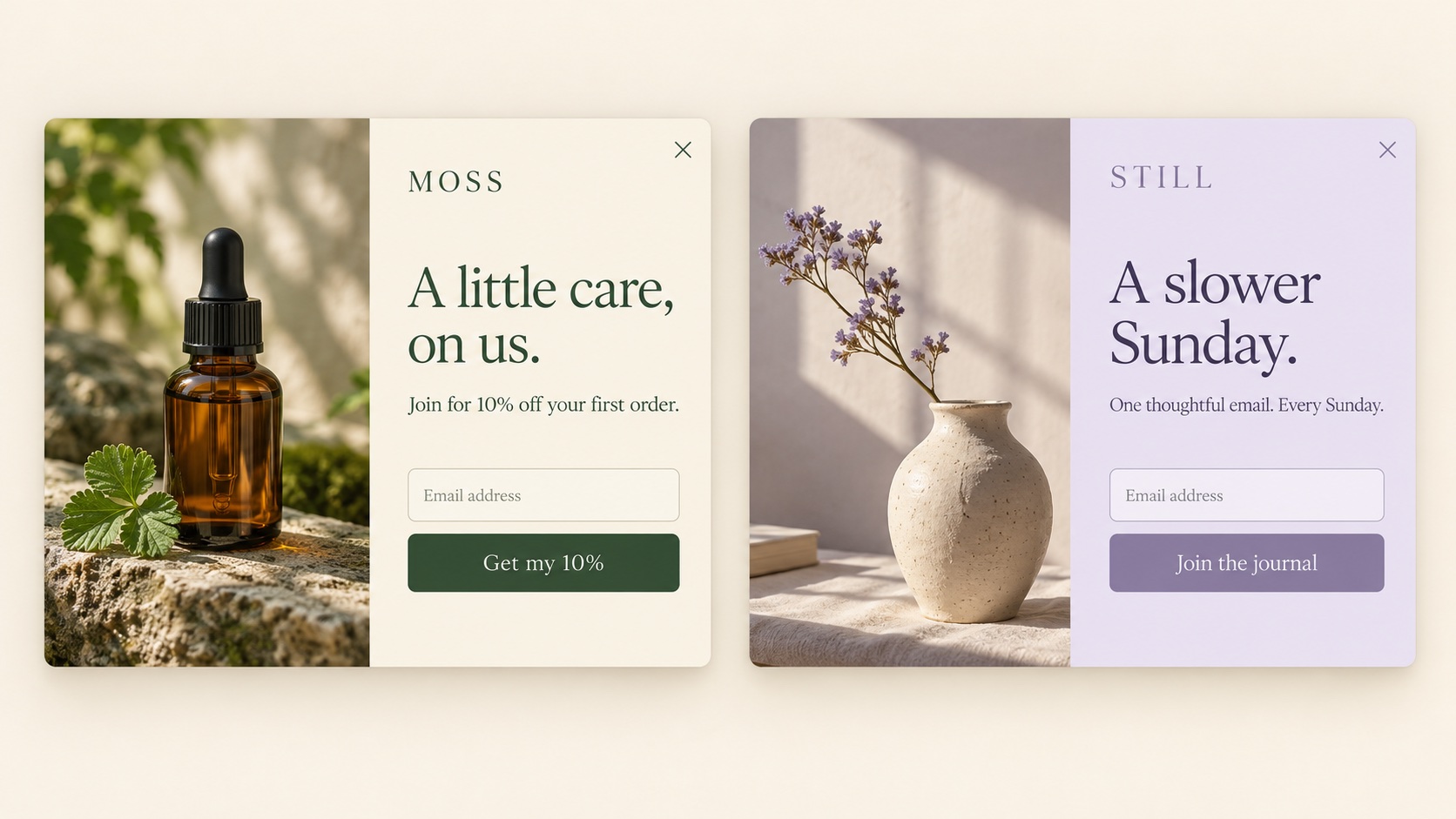
Adapt this template for MOSS, a fictional skincare store. Use a cream background, dark green serif headline and a warm photograph of an amber bottle. Ask for email only. The headline is “A little care, on us.” Offer 10% off a first order and use “Get my 10%” on the button. Add a confirmation step with the discount code placeholder [YOUR_CODE]. Keep the image secondary to the offer on mobile.
Suggested popup copy:
- Headline: A little care, on us.
- Body: Join for 10% off your first order.
- Button: Get my 10%
Why this direction makes sense: The visitor can see the exchange: an email address for a specific offer. The image establishes the mood without carrying the only explanation of the discount.
Follow-up edit: “Keep the offer and field. Make the bottle image smaller on mobile and give the button more space.”
Set up separately: Choose the relevant store pages and a suitable delay. Replace the placeholder with a real, tested discount code; a popup does not create a valid checkout discount by itself.
2. A newsletter popup without a discount
Use it for: publishers and brands whose content is the reason to subscribe.
Prompt to adapt:
Adapt this popup for STILL, a fictional ceramics journal. Use a soft lilac and cream palette, an image of a handmade vase, and one email field. Write “A slower Sunday.” as the headline and “One thoughtful email. Every Sunday.” as the supporting line. Use “Join the journal” on the button. Add a brief thank-you step. Do not mention a discount.
Suggested popup copy:
- Headline: A slower Sunday.
- Body: One thoughtful email. Every Sunday.
- Button: Join the journal
Why this direction makes sense: The copy sets an expectation about content and frequency. It gives a reader a reason to join even when there is no coupon involved.
Follow-up edit: “Keep the headline. Replace the image with a warmer editorial photograph and make the background lighter.”
Set up separately: Start on relevant editorial pages after the visitor has had time to read. Connect the list and arrange the newsletter in your email platform.
3. A desktop exit-intent offer
Use it for: a useful reminder on selected pages when a desktop visitor moves to leave.
Prompt to adapt:
Change this template into a restrained last-look offer for a homeware store. Keep a cream background and a photograph of a ceramic cup. Use “Still thinking it over?” as the headline, one email field, and a short line offering the store’s existing 10% welcome code. Add a confirmation step that reveals [YOUR_CODE]. Keep the close control easy to see. Do not add a countdown or claim that stock is running out.
Suggested popup copy:
- Headline: Still thinking it over?
- Body: Join our list and keep 10% off for your first order.
- Button: Get my code
Why this direction makes sense: The message gives a visitor an option without manufacturing urgency. It stays useful even if they are not ready to buy during this visit.
Follow-up edit: “Remove the image and make this a compact, text-first popup. Keep the offer and confirmation step.”
Set up separately: Use the desktop exit-intent trigger on selected pages. Review mobile display rules separately; do not assume mouse-based exit detection transfers to a phone.
4. A lead-magnet popup with a real next step
Use it for: a business that already has a useful guide, checklist or workbook to deliver.
Prompt to adapt:
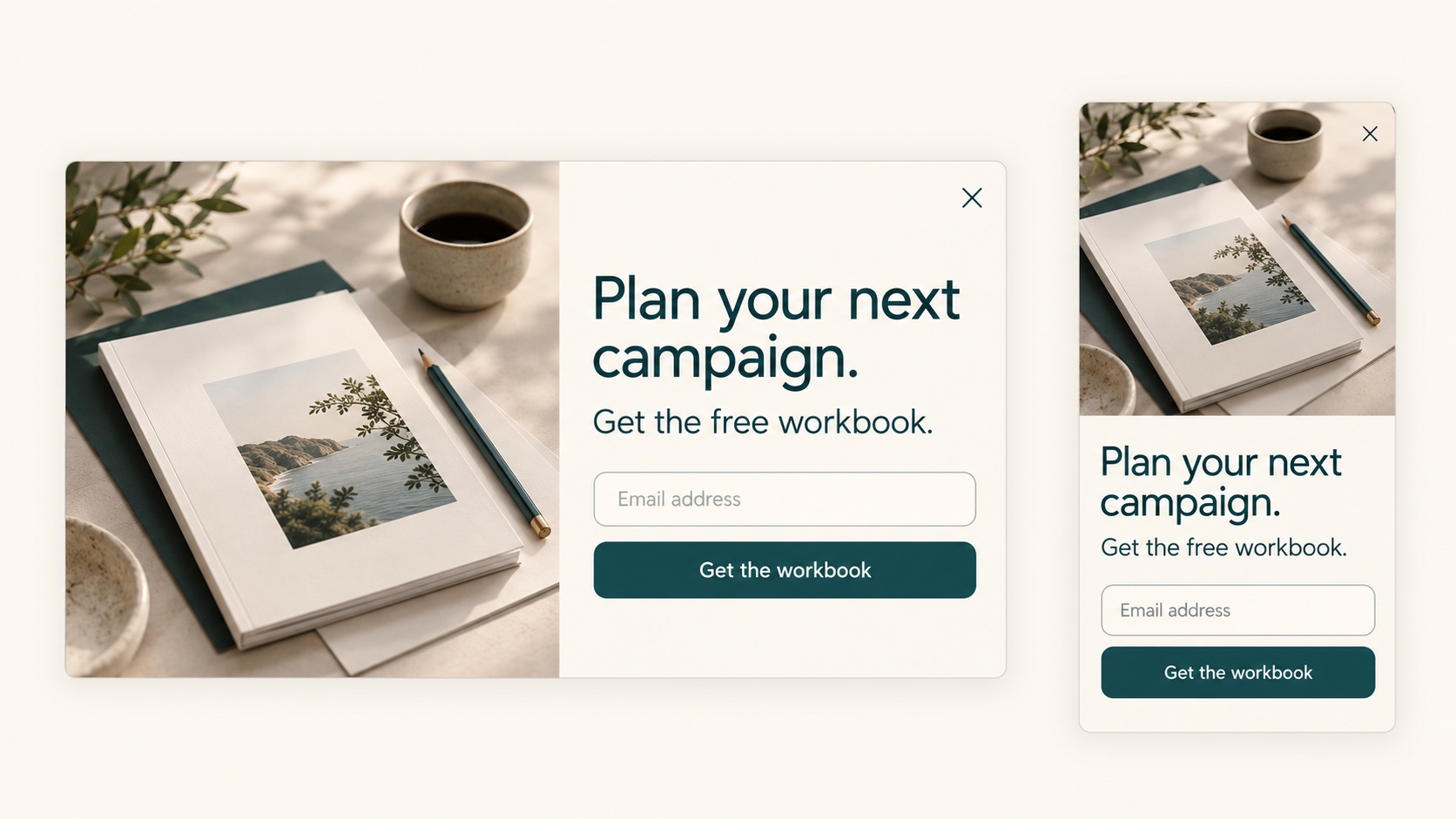
Adapt this template for a free campaign-planning workbook. Use warm cream and deep teal, with a photograph of the workbook beside the copy. The headline is “Plan your next campaign.” Add one email field and the button “Get the workbook”. After submission, show a thank-you step with a download button linking to [WORKBOOK_URL]. Do not say the file has been emailed.
Suggested popup copy:
- Headline: Plan your next campaign.
- Body: Get the free workbook.
- Button: Get the workbook
Why this direction makes sense: The promise and the fulfillment match. A working download link is more useful than a thank-you message that implies an email automation you have not configured.
Follow-up edit: “Keep the fields and download link. Stack the image above the copy on mobile and shorten the image height.”
Set up separately: Replace the URL placeholder, test the download and check the lead record. If you prefer email delivery, configure and test that automation in the connected email tool.
5. An early-access list for a launch
Use it for: an upcoming collection or product with an actual announcement to make.
Prompt to adapt:
Adapt this popup for an upcoming eyewear collection. Use a bold navy headline, pale blue background and one product photograph. Ask for an email address. Use “First look, before the launch.” and explain that subscribers will receive a launch announcement. The button should say “Save my place”. Add a thank-you step. Do not invent a launch date, stock count or guaranteed reservation.
Suggested popup copy:
- Headline: First look, before the launch.
- Body: Join the list for the collection announcement.
- Button: Save my place
Why this direction makes sense: The benefit is early information. The popup does not need a discount, and it does not promise a product reservation unless the business can actually provide one.
Follow-up edit: “Keep this as a one-field signup. Give the product image more room on desktop without enlarging the headline.”
Set up separately: Choose the collection or announcement pages, then create the correct destination list. The follow-up announcement still needs to be sent from your marketing platform.
6. A multi-step form that learns what someone needs
Use it for: a service or store that needs one useful preference alongside a contact.
Prompt to adapt:
Build three steps from this template for a fictional creative studio. Step one asks “What are you working on?” with a single-choice field: “A new website”, “An online store”, or “A refresh”. Step two asks for email and uses “Send my request”. Step three confirms the request was received. Use the same cream and charcoal styling throughout. Do not promise instant recommendations or a response time.
Suggested popup copy:
- First step: What are you working on?
- Options: A new website / An online store / A refresh
- Contact button: Send my request
Why this direction makes sense: The question has a clear purpose: it gives the team context for a follow-up. Each step does one job, rather than putting every possible field on the first screen.
Follow-up edit: “Add an optional name field to the email step. Keep the first question and confirmation unchanged.”
Set up separately: Confirm that the answer and contact arrive together in the submission. Test back navigation and the final button. A multi-step form is not automatically a recommendation engine.
7. An email signup with an optional phone step
Use it for: a brand with a working SMS follow-up process and a clear reason to ask for a number.
Prompt to adapt:
Create an email signup step followed by an optional phone-number step. The first step offers access to product news and uses “Join the list”. The next step asks “Want updates by text too?” with a phone field and a visible “Skip this step” option. Keep the design light and friendly. The email submission must not depend on completing the phone field. Finish with a thank-you step.
Suggested popup copy:
- Email headline: The good stuff, in your inbox.
- Phone headline: Want updates by text too?
- Alternative action: Skip this step
Why this direction makes sense: The phone request is a separate choice rather than a hidden requirement for an email signup. The design should also explain what the person is signing up to receive.
Follow-up edit: “Make the phone field optional and put “Skip this step” directly below the primary button.”
Set up separately: Test the email-only path as carefully as the phone path. Confirm your messaging platform’s opt-in setup before sending texts; collecting a number does not set up SMS delivery.
8. A seasonal announcement that sends visitors somewhere useful
Use it for: a collection or event that needs attention without another signup request.
Prompt to adapt:
Adapt this template for a fictional autumn homeware collection. Use terracotta and cream with a photograph of a ceramic vase. Write “A warmer kind of autumn.” and one short sentence inviting visitors to browse the collection. Add one button, “Explore the collection”, linking to [COLLECTION_URL]. Remove the email field. Keep a clear close control. Do not add a deadline unless I provide one.
Suggested popup copy:
- Headline: A warmer kind of autumn.
- Body: Meet the pieces made for slower evenings.
- Button: Explore the collection
Why this direction makes sense: Not every popup needs to collect a lead. A direct link can be the right next action when the offer is simply a new collection to explore.
Follow-up edit: “Keep the link and copy. Use a smaller image crop on mobile so the whole button stays visible.”
Set up separately: Replace the destination URL, set an appropriate schedule and exclude pages where the same collection is already the main message. Track clicks separately from form submissions.
Build your popup in Onvocado
Use the prompts above as briefs to adapt a template, then work through the actual campaign flow:
- Add your website. Onvocado uses the site as context for its detected branding.
- Choose a template. Pick a layout close to the job you want the popup to do. You can browse popup templates before deciding on the visual direction.
- Apply your website’s branding. Review the detected palette and the artwork. Matching the brand is a starting point, not a reason to skip a visual check.
- Describe the changes in chat. Adapt one of the example prompts. Refine the copy, fields, layout, artwork and steps, then use Undo if a change takes the design in the wrong direction.
- Check both previews. Inspect desktop and mobile, then go through every step of the form.
- Configure targeting. Review page rules, timing or trigger, device conditions, schedule and frequency. These settings decide when the campaign appears.
- Review, publish and test on the website. The installation snippet must be present before visitors can see the popup. Submit a real test entry and check its destination.
If you connect an email platform, check the available integration setup and list mapping. Confirm that your test lead syncs successfully before relying on the handoff.
Check your popup before publishing
A first draft is a proposal. Check the parts that can make an attractive popup difficult to use:
- Can people read it? Check text over images, contrast, line breaks and button labels at the actual preview size.
- Can people dismiss it? Keep the close control visible and test keyboard interaction on the installed popup.
- Are the fields clear? Use understandable labels, mark optional fields, and verify errors. The W3C form-labeling guide explains why controls need associated labels rather than relying only on placeholder text.
- Does mobile still work? Check image height, all form steps, and the submit button with the on-screen keyboard open.
- Does the promise happen? Test the code, download, destination link or follow-up. Generating the design does not configure those business processes.
Avoid covering the whole page as soon as someone arrives from search. Google’s guidance on intrusive interstitials warns that obstructive overlays can make content harder to access and can affect search performance. Consider a smaller format or a visitor-initiated interaction where it fits the message.
There is no universal delay or scroll percentage that makes every popup effective. Start with a sensible rule for the page, limit repeat appearances and use actual visitor results to decide what to change.
Measure what happens next
For a signup campaign, start with impressions and successful submissions. Work out conversion rate using the same reporting period:
Submission conversion rate = successful submissions ÷ popup impressions × 100.
For example, 20 submissions from 1,000 impressions gives a 2% submission rate. This is an arithmetic example, not an Onvocado benchmark.
Also inspect the result behind the number. Are the contacts useful? Are duplicate entries inflating the count? Did the lead reach the intended list? A popup that collects an email but fails to deliver it has not completed the handoff.
Use Onvocado’s Leads and Reports views to inspect submissions and campaign performance. For a click-through announcement, look at the campaign’s click data instead of treating it like a signup form. Neither a click nor a form submission proves an order happened.
When improving a campaign, change one meaningful thing at a time, such as the offer wording or the fields you ask for. Comparing different date ranges is useful for spotting patterns, but it is not the same as a controlled A/B test. Traffic and audience may have changed too.
Frequently asked questions
Can an AI popup builder match my website?
It can use your site’s colors and visual direction as context, depending on the tool. Review what it detected and check the finished popup. An AI-generated image can fit the mood without being an accurate photograph of your real product.
Can AI add form fields and extra steps?
Some builders can edit the structure as well as the words. In Onvocado you can ask for fields and steps through chat. Verify the labels, required settings, navigation and submission data after a structural change.
Can I create popups with AI for free?
That depends on the provider and plan. Check whether the free access includes AI edits, generated images, publishing and the traffic allowance you need. A free trial does not necessarily include unlimited artwork generation.
Will AI-generated popups automatically improve conversions?
No result is automatic. The offer, audience, placement and usability still matter. Use a builder to make and refine the campaign, then measure its performance on your own website.
Does a generated popup image collect leads?
No. A generated image is artwork. A working popup needs real fields, buttons, submission handling and installation. Keep the important text and controls in the popup itself rather than flattening the whole campaign into an image.
Start with one good idea
Pick one goal from the examples, choose a template and make the first version specific: a real offer, the fields you need and a clear next step. Let AI help with the design, then keep the parts that make the campaign useful to a visitor.
Explore Onvocado’s AI popup builder or find a template to start with. For a closer look at the structure, read the multi-step popup guide.