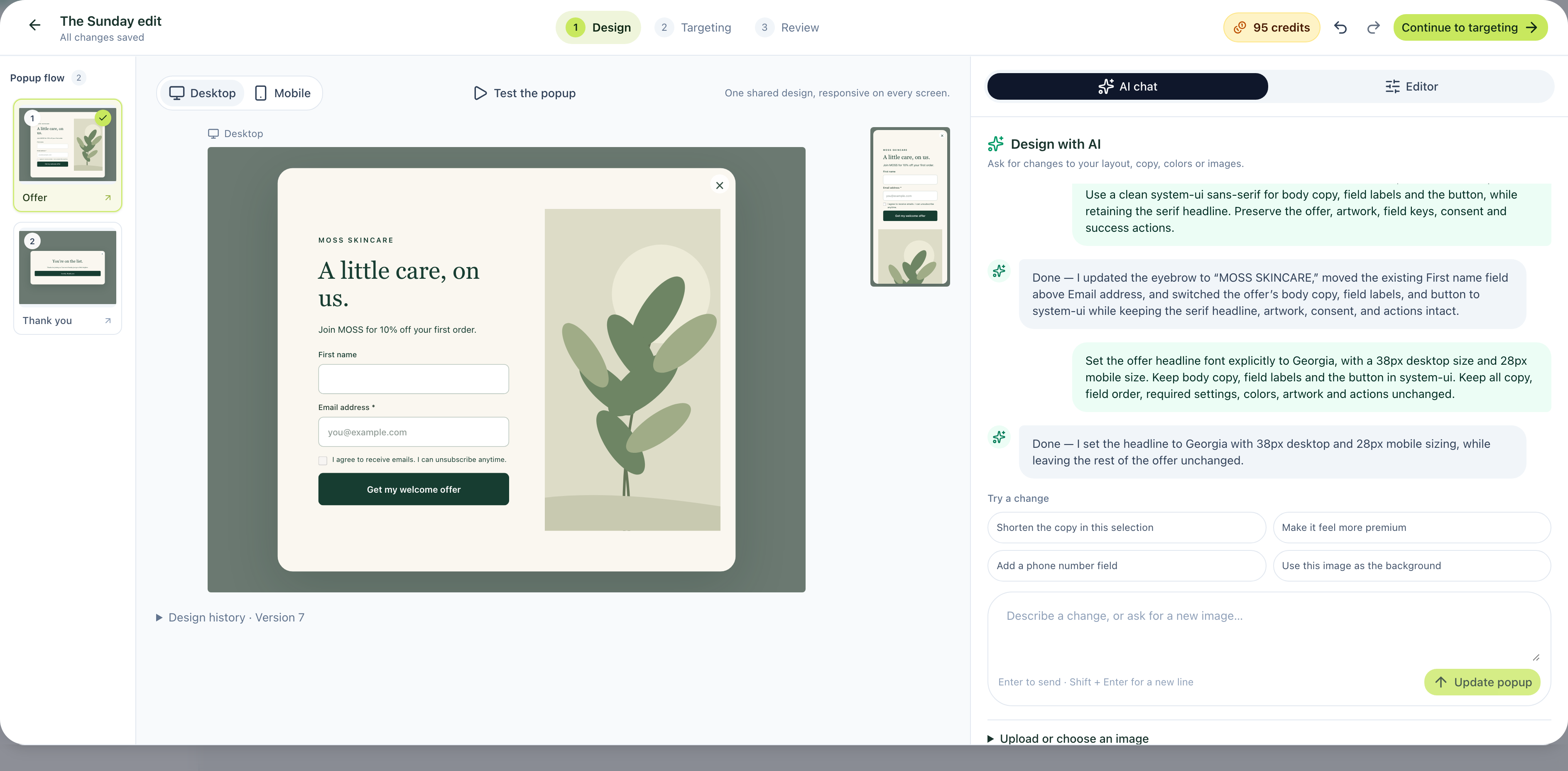
Start with a template, describe your campaign and refine the result in conversation. In Onvocado, that design sits beside the chat, so you can check the copy, form and mobile layout as you work.
This guide follows a MOSS skincare welcome offer through the current builder: choosing a template, applying a brief, adding a field, refining mobile, testing signup and reviewing targeting. The screenshots are fresh captures of the app, and the video is an actual screen recording.
The workflow: choose a goal and template, shape the design with AI, inspect desktop and mobile, test the form, configure display rules, review and publish. Then install your site's snippet and verify a signup on the website.
For more campaign ideas, see our eight AI popup examples and prompts. Here, we complete one practical workflow.
Before you start: choose one signup goal
For a first ecommerce campaign, choose one job: collect an email for a real welcome offer, invite people to a newsletter or build an early-access list. Avoid asking one popup to explain every product and collect every customer detail.
Have these ready:
- Your website and a way to install custom scripts, directly or through a supported website/tag-management setup.
- A short headline, a clear benefit and the fields you actually need.
- Your brand colors and an image you have permission to use, if the design needs one.
- A real discount code, download or destination if you promise one.
- Your privacy information and the appropriate opt-in choices for your campaign.
A popup does not create a checkout discount or send a newsletter just because the copy mentions one. Arrange those parts in your store or email platform, then test them.
1. Choose a template and write the brief
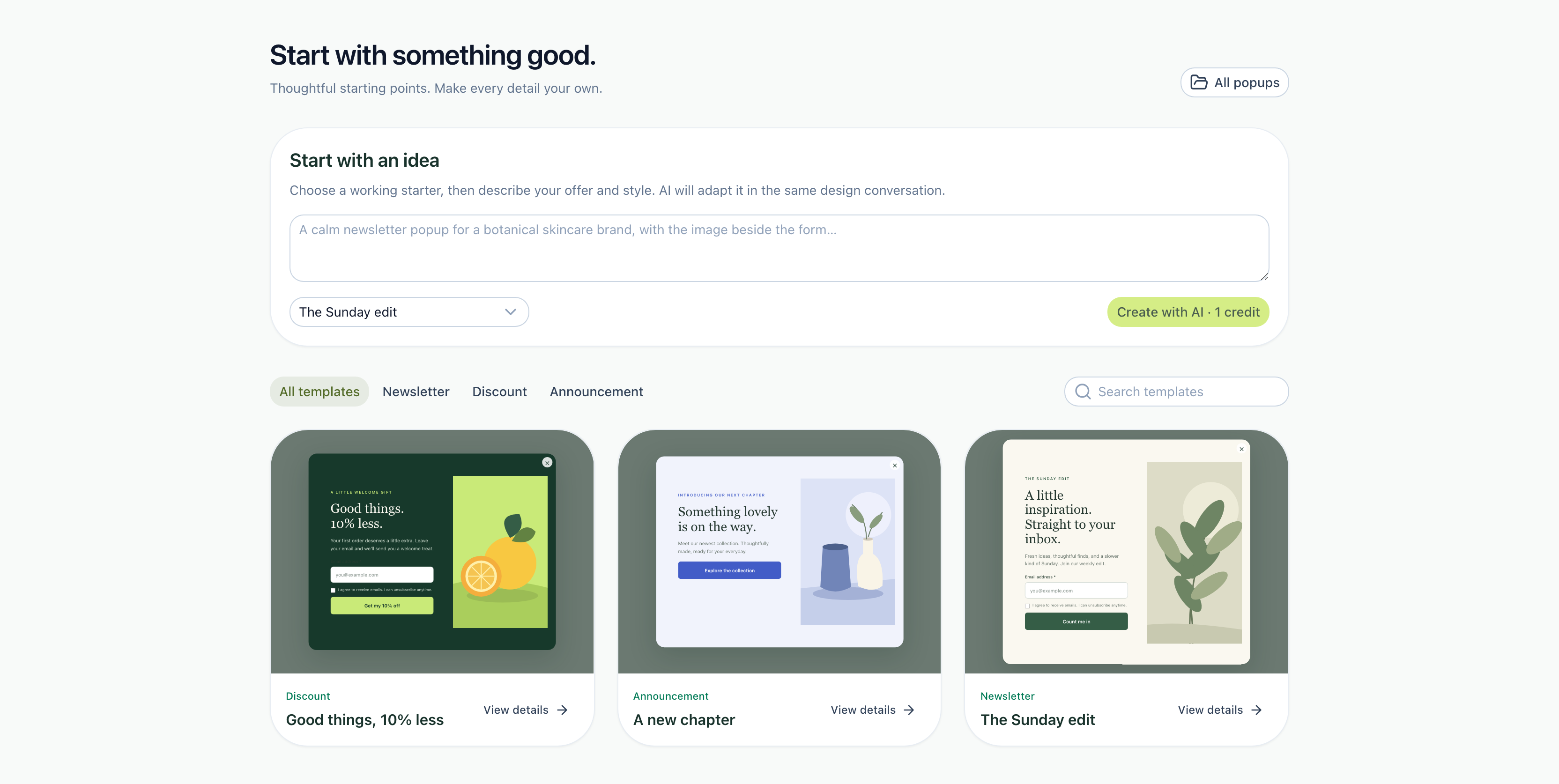
Open the template library and select a starting point close to your goal. For this example, we chose The Sunday edit, whose botanical artwork suits a calm skincare campaign.
Select Use template. The next screen asks which look to start from and whether anything should change. We kept the template's look and supplied the actual campaign brief below, so the existing illustration remained part of the design.
Create a calm welcome offer for MOSS, a botanical skincare shop. Use an ivory background (#FAF7F0), deep forest green (#173D31), a warm serif headline and sage accents. Headline: “A little care, on us.” Body: “Join MOSS for 10% off your first order.” Button: “Get my welcome offer”. Keep one required email field, the existing consent choice and botanical artwork. Keep the whole form readable on desktop and mobile.
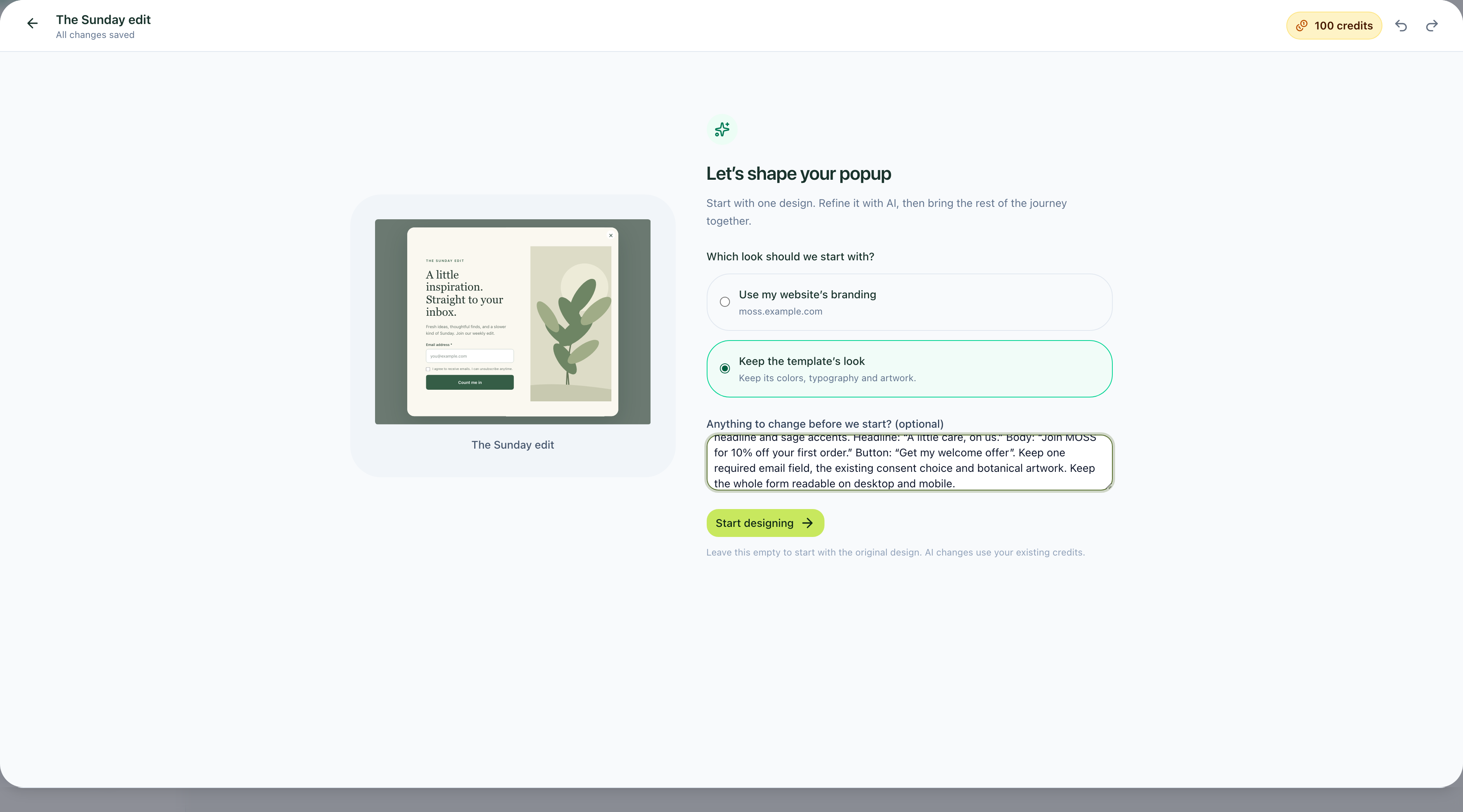
Choose Start designing and inspect the result. Use your own offer, privacy information and working destination. A popup mentioning 10% off does not create a valid checkout discount; arrange and test that in your store.
2. Review the first AI design
The first request changed the headline, message and palette while preserving the email field, consent choice and botanical artwork. The result appeared beside the editing conversation, with desktop and mobile previews available.
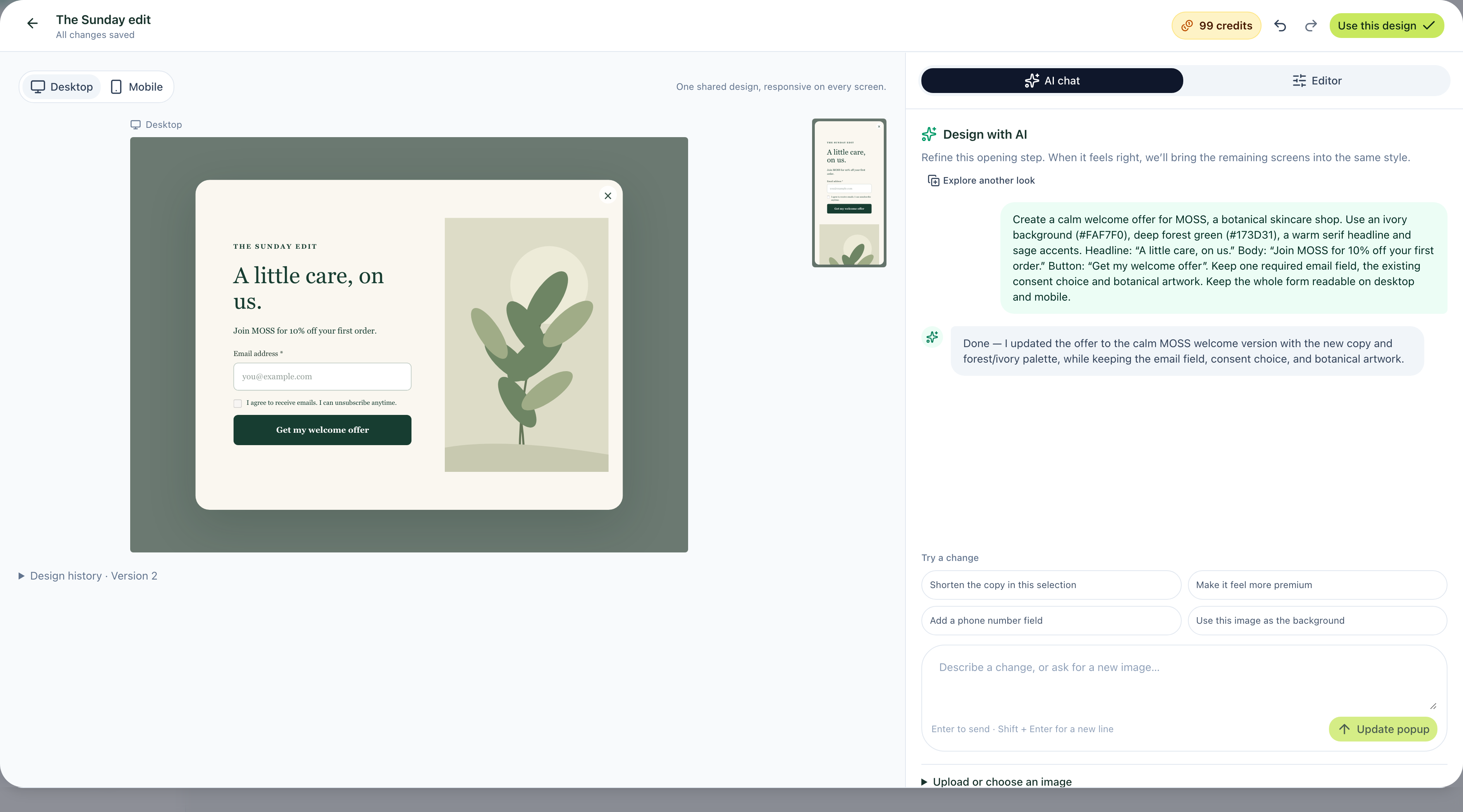
Read the headline and button, inspect the required fields and check the parts you asked to preserve. A first draft gives you something concrete to refine. In this example, the template's eyebrow text and some typography still needed a follow-up.
3. Add a field and refine the details
We next asked for an optional first-name field:
Add an optional first-name field above the email field. Label it First name. Preserve the offer, artwork, required email and consent choice.
The field was added, but its first placement was below the email field. Checking the preview revealed that difference, so we used another request to correct the order and bring the brand details together:
Change the small eyebrow text to MOSS SKINCARE. Move the existing optional First name field before the Email address field in the same form; do not add a duplicate. Use a clean system-ui sans-serif for body copy, field labels and the button, while retaining the serif headline. Preserve the offer, artwork, field keys, consent and success actions.
A final, specific typography request made the headline font explicit while keeping the body and controls simple:
Set the offer headline font explicitly to Georgia, with a 38px desktop size and 28px mobile size. Keep body copy, field labels and the button in system-ui. Keep all copy, field order, required settings, colors, artwork and actions unchanged.
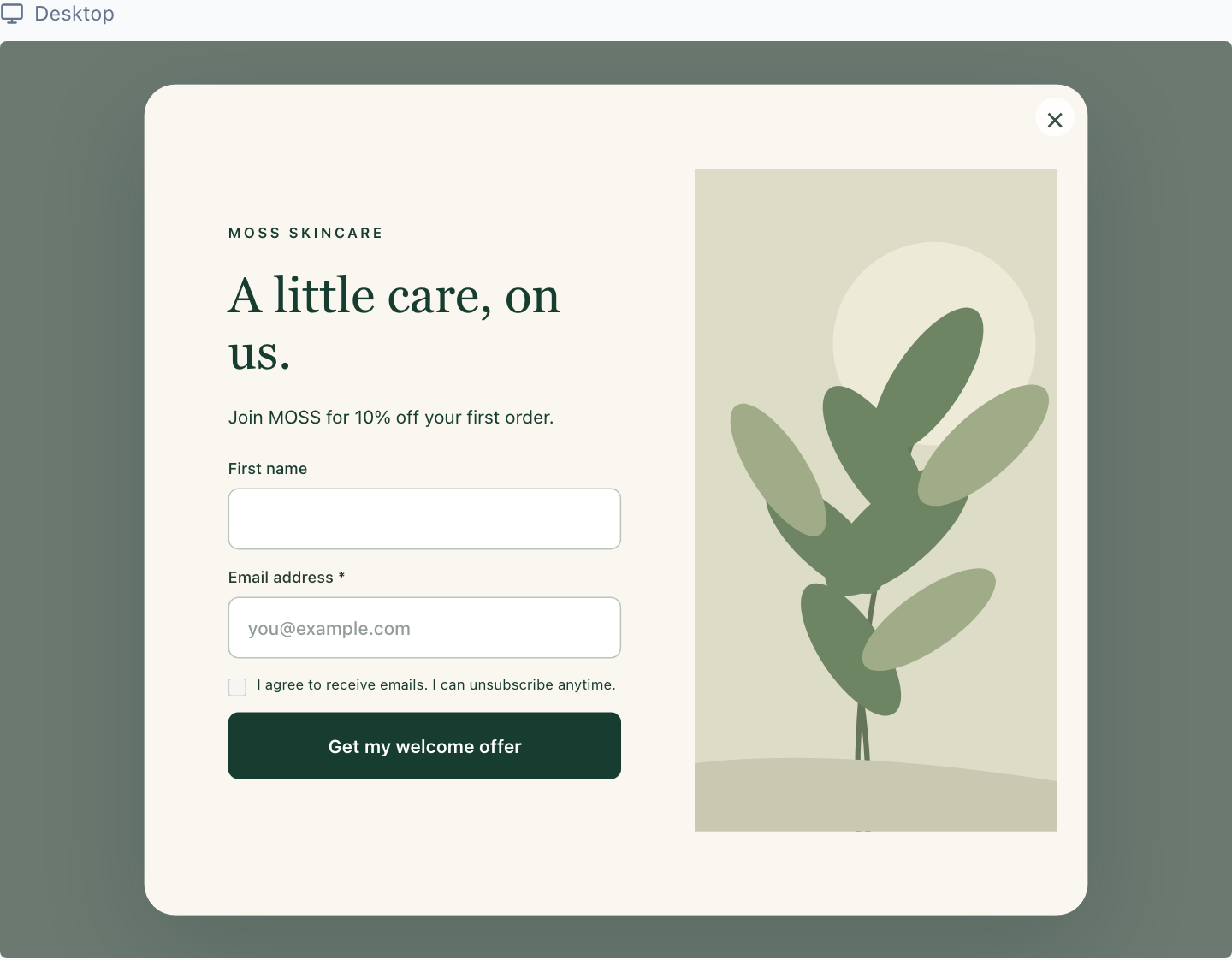
Make focused requests and verify the saved result. If a change goes in the wrong direction, use Undo and try a narrower instruction. Measure signup performance separately when evaluating the effect of a design change.
4. Check mobile before moving on
Switch to Mobile and review the whole form. The first mobile refinement in this walkthrough used this exact request:
On mobile only, make the heading 28px and tighten the spacing around the form so the signup button fits comfortably. Keep desktop styles, field labels and all copy unchanged.
The final mobile preview below also includes the later brand, field-order and typography refinements. It shows the optional name field, required email, consent choice and signup action in one vertical flow.
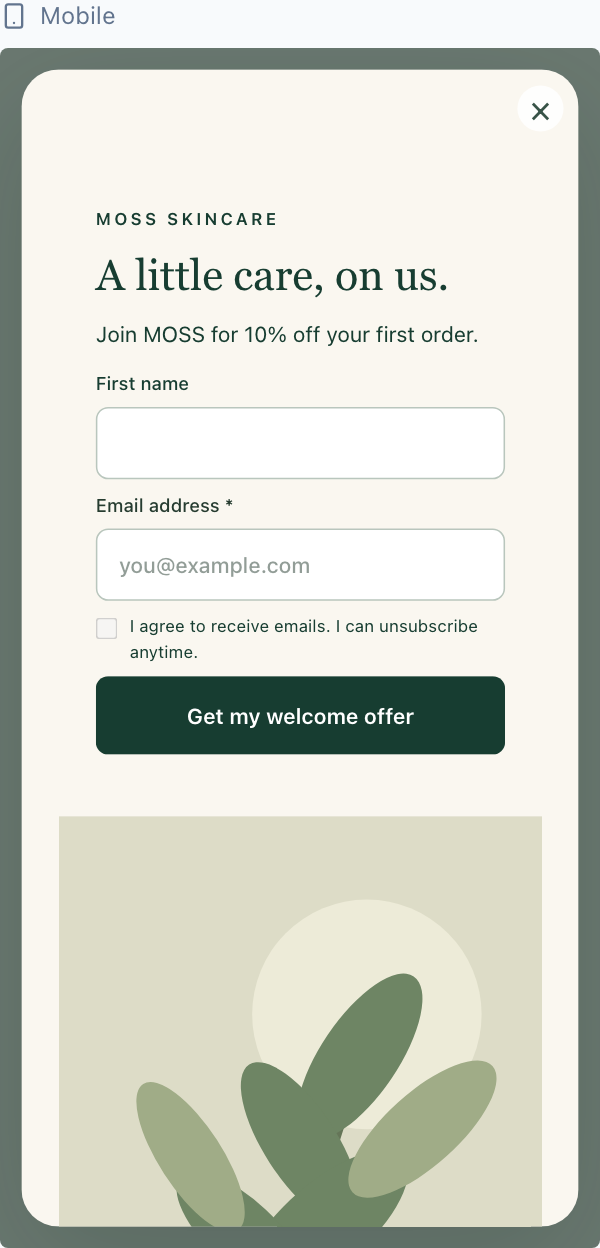
Return to desktop and compare the design there too. Check longer labels, validation errors and the form with a phone keyboard open. For more on respectful display behavior, use the non-intrusive popup checklist.
Watch the current v2 workflow
This recording follows the same MOSS draft through the current builder. It includes actual AI requests, responsive previews, the form test, targeting and review. Long processing waits and inactive passages have been shortened.
Download the 1080p MP4 walkthrough. Chapter text is included in the video, with an optional English caption track in the player.
Text walkthrough
- Choose a template and write the campaign brief.
- Review the first MOSS welcome-offer design.
- Add an optional first-name field.
- Inspect mobile and approve the design.
- Refine brand labels and field order.
- Compare mobile and desktop.
- Make the desired typography explicit.
- Test the signup form and confirmation with fictional data.
- Set targeting and review the full flow.
5. Test the form and confirmation
Use Test the popup to follow the journey as a visitor. Try invalid input and missing required values, then complete a valid test. If a field is optional, test without it as well.
In this walkthrough, we entered fictional contact information, completed the preview form and reached its confirmation screen:
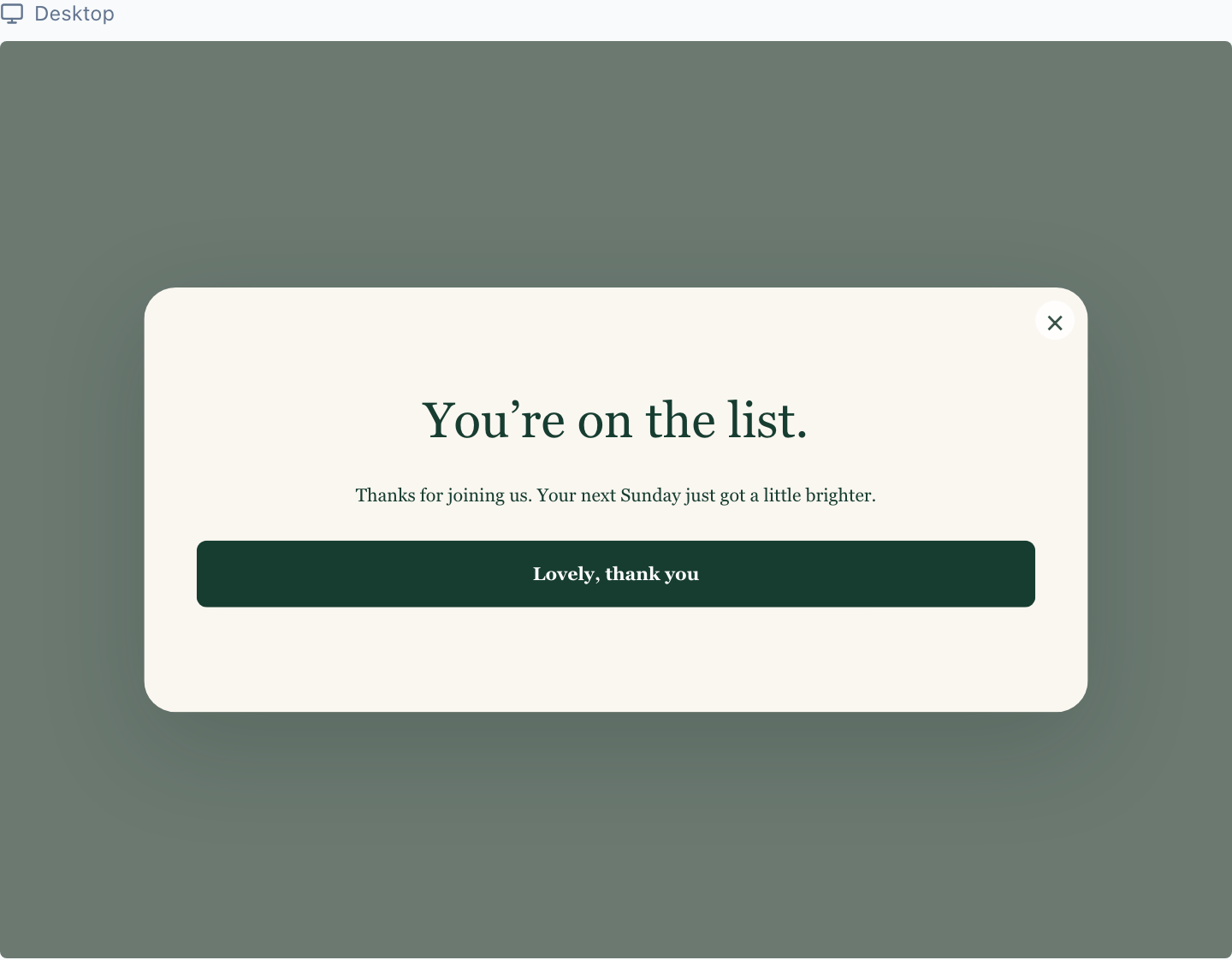
For a welcome offer, review what the confirmation actually delivers. Replace placeholders with a valid code, link or clear expectation before publication. For longer journeys, test every transition and confirm that the final submission contains the intended fields. Our multi-step popup guide covers sequence planning.
6. Configure targeting and review the flow
Choose Continue to targeting to decide where and when the campaign appears. Mentioning an audience or delay in a design prompt does not configure these rules.
- When: choose an appropriate delay, scroll condition or supported desktop exit-intent rule.
- Who: check the website, page filters and device choices.
- How often: review repeat display and dismissal behavior.
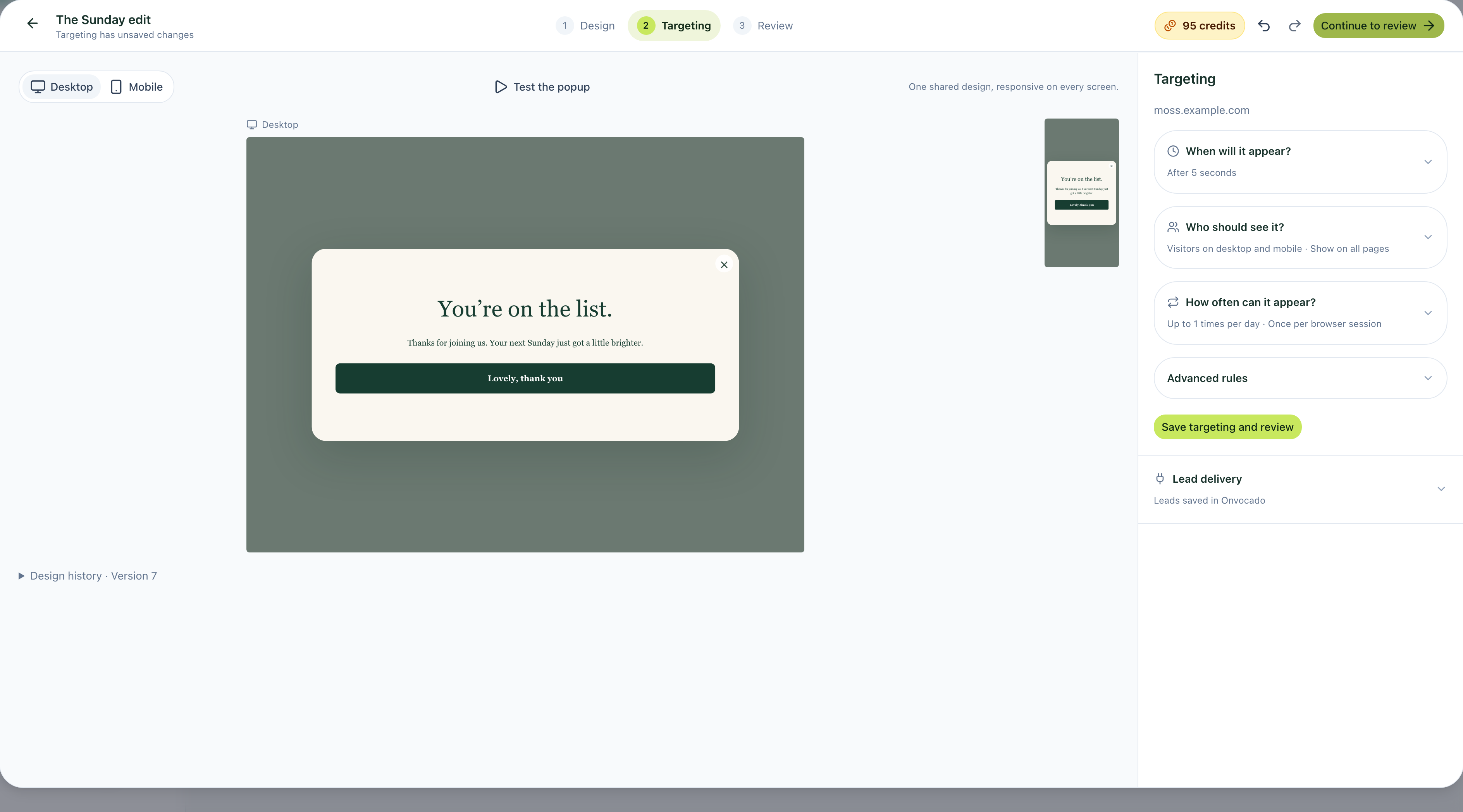
Continue to Review. Inspect each screen and both preview sizes, and check the installation and lead-delivery information before publication.
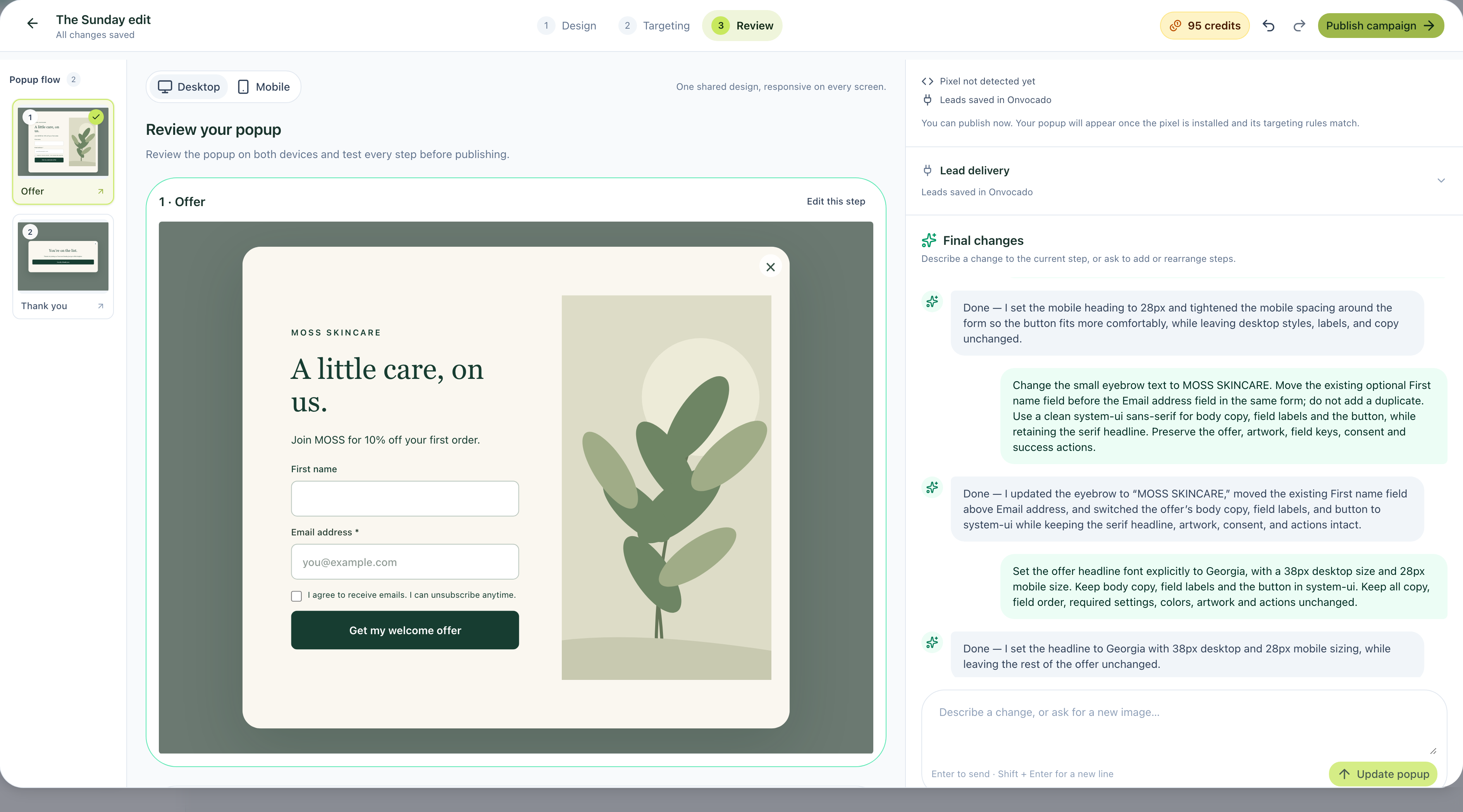
The next action is Publish campaign once your actual campaign is ready. The recording stops at review; use the checks below to complete your website setup.
7. Publish, install and verify a real signup
The recorded walkthrough finishes at Review. To put your reviewed campaign on the website, complete these publication and installation checks.
Publishing a campaign and adding your site’s installation snippet are separate steps. Visitors need the active campaign, the correct site snippet and matching display rules.
- Copy your site's installation snippet. Use the code supplied for the website you are setting up. Follow your website platform's supported custom-code or tag-manager process.
- Install it once on the intended pages. Check the website installation status and visit the public site. A builder preview is not evidence that the snippet is installed.
- Publish or activate the reviewed campaign. Verify its site, page, device and timing rules.
- Visit as a test visitor. Use a clean browsing context where appropriate so a previous dismissal or submission does not suppress the campaign. Check a desktop browser and a phone.
- Submit clearly identified test data. Verify the success action and confirm that the record appears in Leads with the expected values.
- Check any promised handoff. If a supported email platform is connected, confirm the destination record and delivery status. Configure newsletters and follow-up messages in that platform.
Use your actual installation instructions rather than copying another site's snippet. See the WordPress integration page or Google Tag Manager setup page where relevant. The integration directory lists available connections and their setup requirements.
If no popup appears, check the website, snippet, publication state, exclusions, trigger, device rules and frequency history before repeatedly changing the design. If the popup works but a contact does not arrive in an external tool, inspect connection and delivery status separately.
After launch: measure the action you wanted
Track eligible popup views and valid submissions over the same period, and inspect mobile separately. A design change can affect appearance without improving signups. Use popup A/B testing principles to plan a fair comparison when traffic and the available controls support one.
For example, 20 valid signups from 1,000 eligible views would be a 2% signup rate. That is illustrative arithmetic, not an Onvocado benchmark or a promise for your store.
Start with one clear campaign, verify that leads arrive and use what you observe to decide the next edit. Explore popup templates or the email capture use case for a suitable starting point.
About this example
MOSS is a fictional brand. The screenshots and recording were captured in the current v2 app on October 26, 2026, using real AI requests and fictional form data. The video is edited for pace. Preview signup was checked; production installation, live email-platform delivery and conversion uplift are outside this recording.