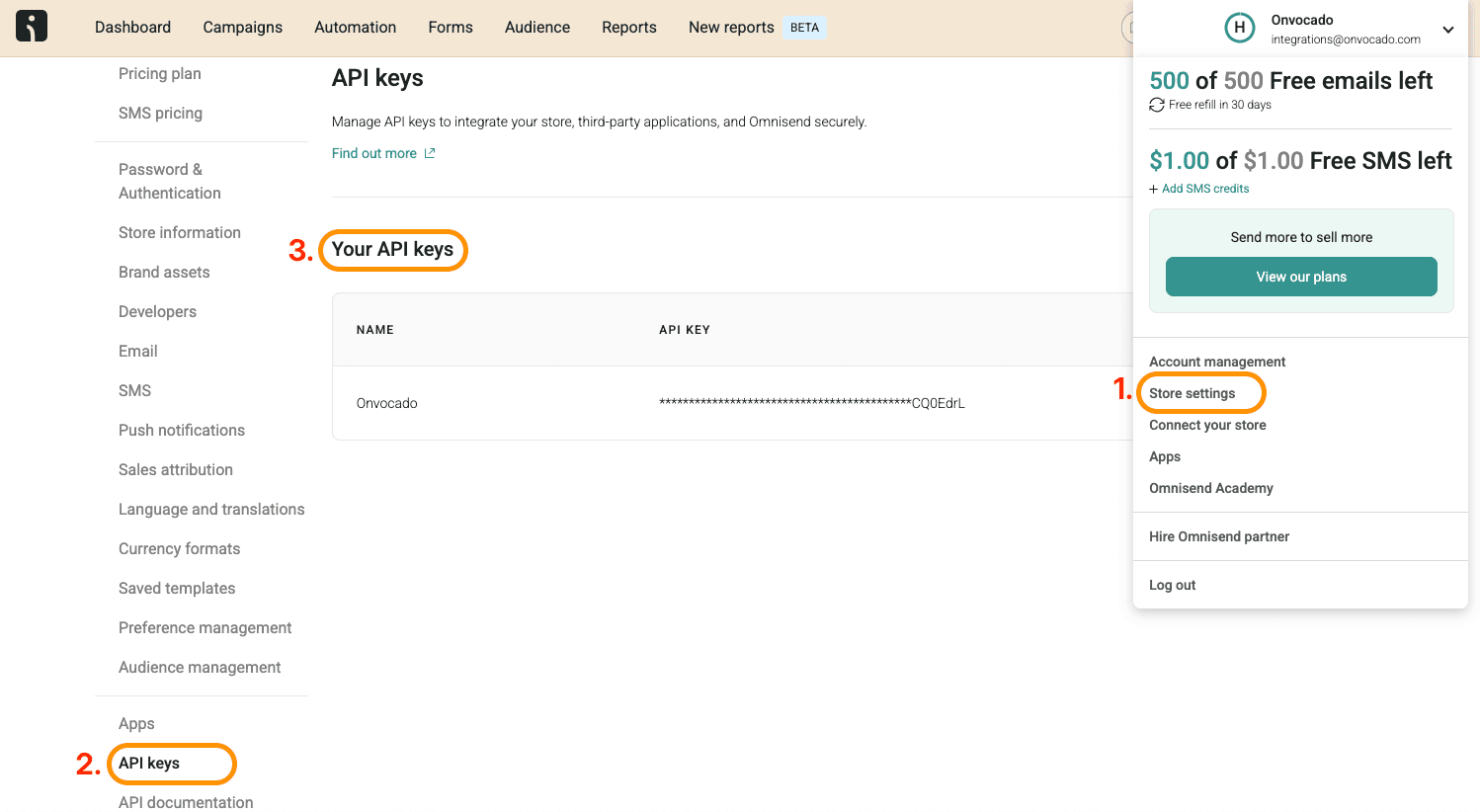
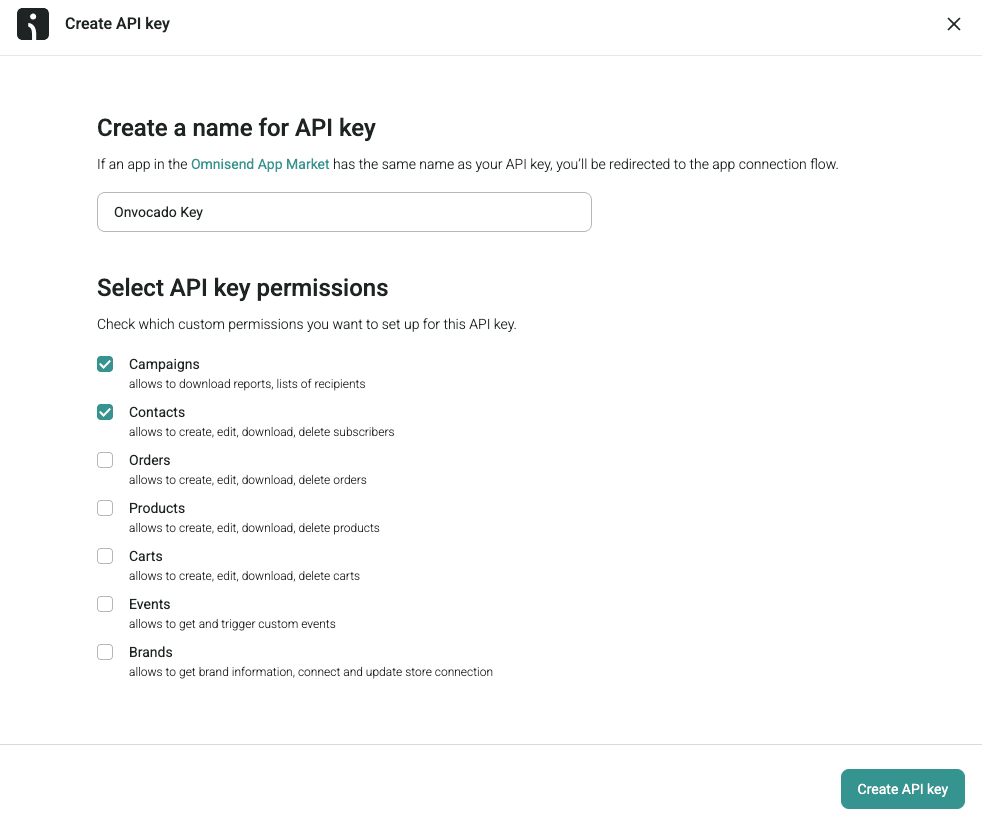
1. Log into Your Onvocado Account
Log in to your Onvocado account and go to the "Publish" settings for the Campaign you want to integrate.
2. Navigate to the Integrations Section
Once in the settings:
- Locate the Integrations Tab:
- Once in your campaign's "Publish" page, scroll to the the integrations menu, find and click on the "Browse More Integrations" button:
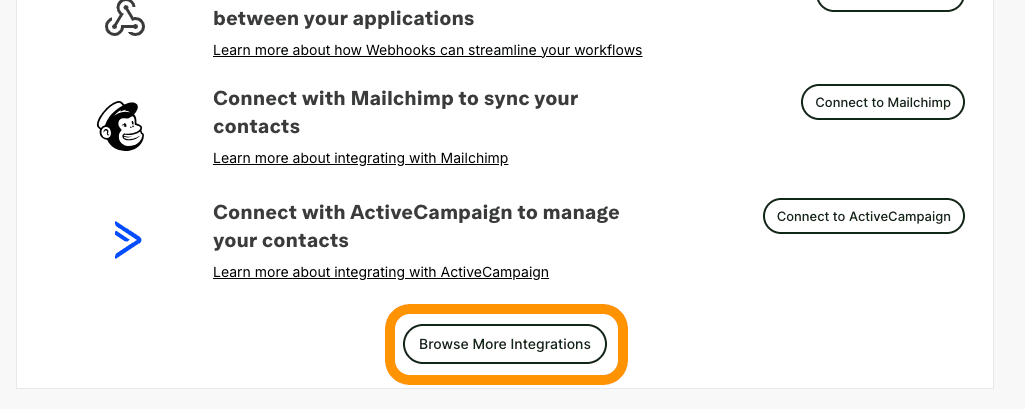
- Select Omnisend:
- From the list of available integrations, select "Omnisend". This will open the Omnisend integration form where you'll input your credentials and configure settings.
3. Access the Omnisend Integration Form
On the Omnisend integration sidebar, you'll be presented with a form designed to capture all necessary information for a successful connection.
Note: Further details on how to retrieve Omnisend API credentials can be found in this article.
a. Integration Name
- Field: Integration Name
- Description: Provide a name for this integration. This helps in identifying the integration, especially if you have multiple integrations set up.
- Action: leave default or enter a descriptive name.
b. Enter Your Omnisend API Key
- Field: API Key
- Description: The API Key is a unique identifier that allows Onvocado to communicate securely with Omnisend.
d. Select a Omnisend List
- Field: Omnisend List
- Description: Choose the specific contact list from Omnisend where you want to sync your Onvocado leads.
- Action: Select the desired list from the dropdown menu.
4. Configure Field Mapping
Mapping your internal Onvocado fields to Omnisend fields ensures that data is correctly transferred and utilized in your marketing campaigns.
a. Internal Field
- Description: These are the labels of the form elements used in your Onvocado widget.
- Action: Review the list of internal fields displayed on the left side of the mapping section.
b. External Field
- Description: These are the corresponding field names in Omnisend where the data will be sent.
- Action: For each internal field, select the appropriate Omnisend field from the dropdown on the right.
Important: Ensure that the external "email" field is mapped and marked as active since it's mandatory for Omnisend.
c. Activate All Fields (Optional)
- Feature: All Fields Active Checkbox
- Description: Toggles the activation state of all field mappings.
- Action: Use this checkbox to quickly activate or deactivate all mappings based on your preference.
5. Save and Activate the Integration
After configuring all necessary fields:
- Review Your Settings:
- Ensure that all required fields are filled out correctly.
- Verify that the Email field is mapped and active.
- Save Changes:
- Click the "Done" button to save and activate the integration.
- Confirmation:
- A success message, such as "Save successful!", will appear, indicating that the integration has been successfully set up.
6. Test the Integration
To ensure that everything is working as expected:
- Add a Test Lead:
- Create a new lead using an Onvocado widget.
- Verify in Omnisend:
- Log into Omnisend and check if the new lead appears in the selected list with the correct data mapped.
- Troubleshoot if Necessary:
- If the lead doesn’t appear or data is incorrect, revisit the integration settings.
- Double-check field mappings and API credentials for accuracy.