Open Targeting and edit the audience/location condition. Choose the countries and devices you intend to include using the current controls, then apply and save. Check existing page rules and the schedule as well. Empty country restrictions do not create a country-specific audience.
Back to help center
Targeting & publishing
Set country and location rules
Use the location controls available in your campaign and test the actual result.
1 min read Reviewed Nov 10, 2026
01 Follow these steps
02 Understand the location signal
Location depends on the geographic information supplied to website delivery. Unknown location does not satisfy a selected-country restriction. Do not assume that precise city targeting is available because a template or older screenshot mentions it. Use the controls actually shown in your account; contact support if the location signal is missing. A VPN can change the apparent location but does not prove a city is detected accurately.
03 Check the result
Review and publish the change. Test one expected eligible visit and one excluded-by-country visit while keeping the other rules the same. Check device, time, frequency and consent before concluding that location is the cause. See triggers and display limits and troubleshooting.
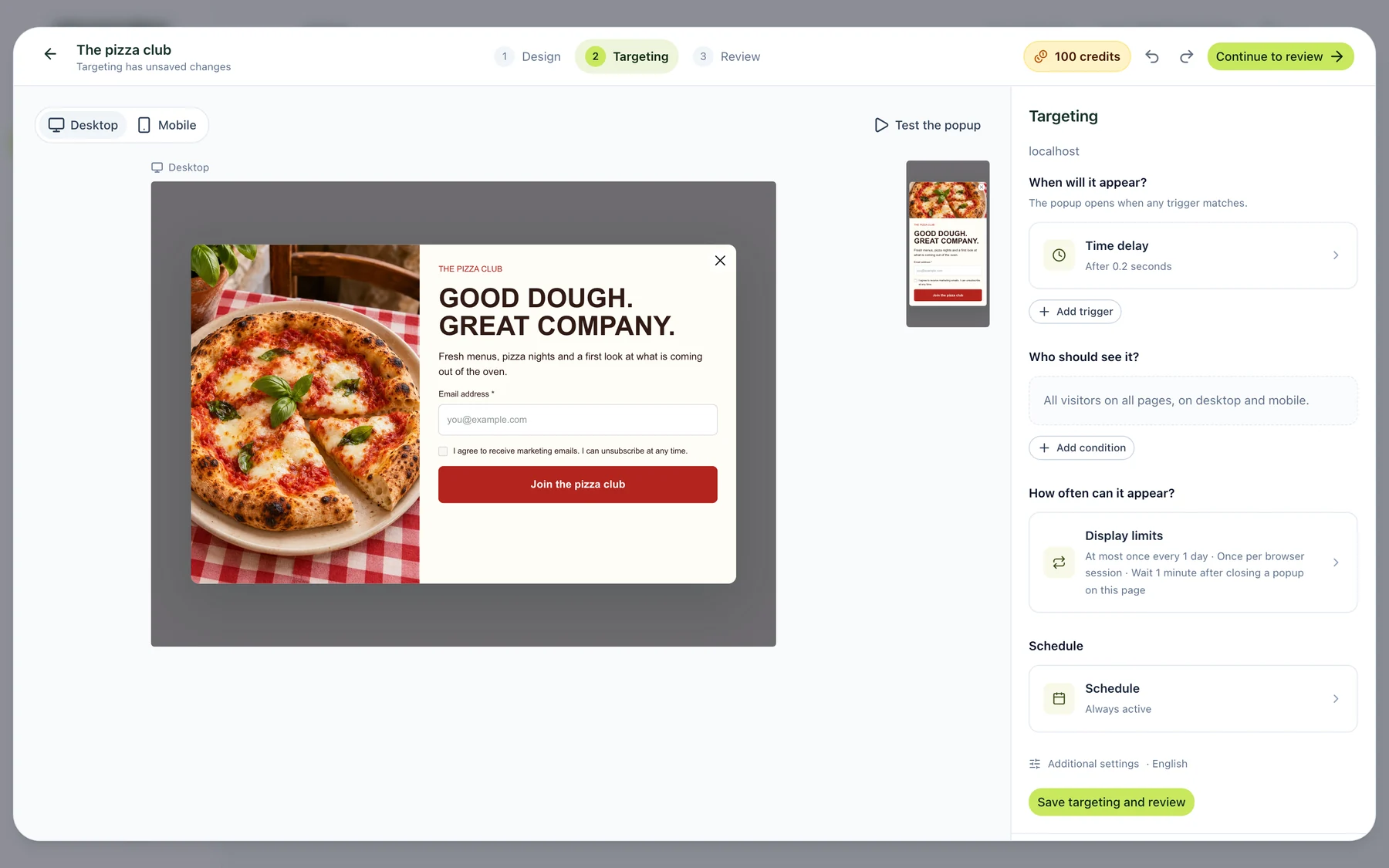
04 What the current app looks like
Was this article helpful?
Related articles
Review, publish, update and pause a popup
Understand private drafts, checks and the version visitors actually see.
Read article
Choose when and how often your popup appears
Set triggers, display limits and a schedule that match your campaign.
Read article
Launch your first Onvocado popup
Choose a template, review it, set targeting and verify a real signup.
Read article
Didn't find what you need?
Our team is one message away. Expect a reply within a business day.
Contact support