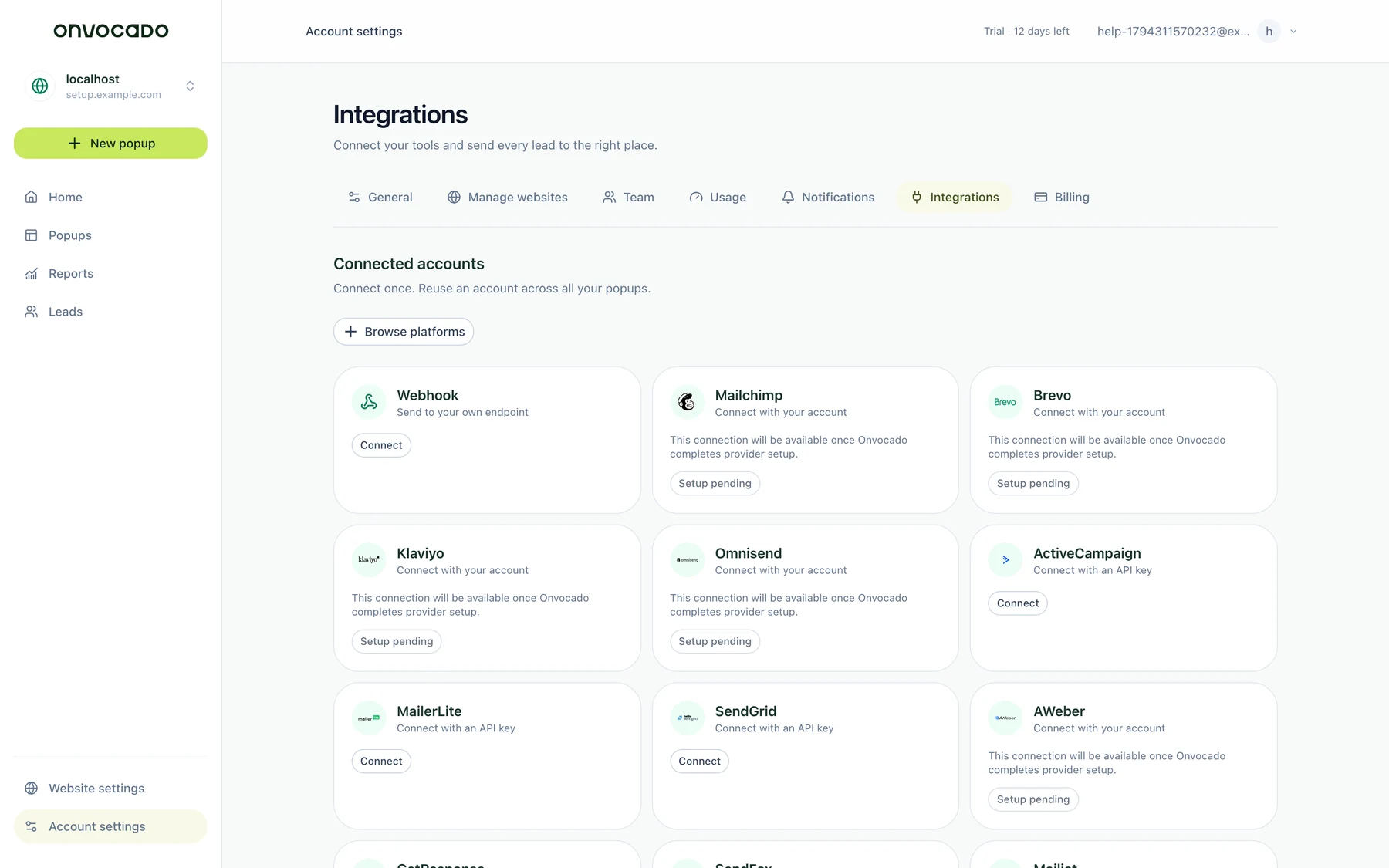
Use an owner/admin account for the workspace and access to the intended MailerLite account. Open Settings → Integrations. Use the connection option shown as available in your account. If Connect is unavailable, contact support to confirm availability; a plan change alone should not be assumed to enable that provider. Connecting an account does not send contacts automatically.
Back to help center
Leads & integrations
Connect Onvocado to MailerLite
Connect the right account, configure a popup destination and verify lead delivery to MailerLite.
2 min read Reviewed Nov 10, 2026
01 Before you start
02 Connect the account
Choose MailerLite, enter a descriptive connection name and the API key/token for the intended account. Use the fields displayed by the connection form. Keep credentials in that form; never put them into popup text or artwork.
03 Configure the popup destination
Open Send leads to for the intended popup; the destination editor is also available from Leads and the Review step. Choose the saved connection, configure the available list/group or tags, map required fields and review the automatic sending option. Select a real consent field when requesting a marketing subscription. Save the destination.
Choose the intended group and map subscriber fields. Sync preserves existing subscription restrictions. Replacing the API key may require a new connection and destination rather than reusing an unrelated account identity.
04 Check the result
Submit clearly marked test data through the installed, published popup. Find it in Onvocado Leads, inspect that destination’s delivery status and verify the record in the correct MailerLite account. A builder preview or a connected-account label does not establish live delivery. A synced contact is not proof that a welcome email was sent; configure follow-up campaigns in MailerLite.
05 If something is different
If the lead is saved but delivery fails, check the selected account, required mappings, permissions and consent. Reconnect an expired authorization and retry the affected delivery after fixing its cause. Processing or Accepted can be an intermediate provider state. Do not delete the saved lead just to retry. See delivery troubleshooting and webhooks for other destinations.
06 What the current app looks like
Was this article helpful?
Related articles
Find your leads and troubleshoot delivery
Separate form capture, external sync and subscription confirmation.
Read article
Send signed lead webhooks from Onvocado
Connect a receiver and understand the lead.created event, acknowledgement and retries.
Read article
Send new Onvocado leads to Zapier
Use Webhooks by Zapier with completed form submissions.
Read article
Didn't find what you need?
Our team is one message away. Expect a reply within a business day.
Contact support