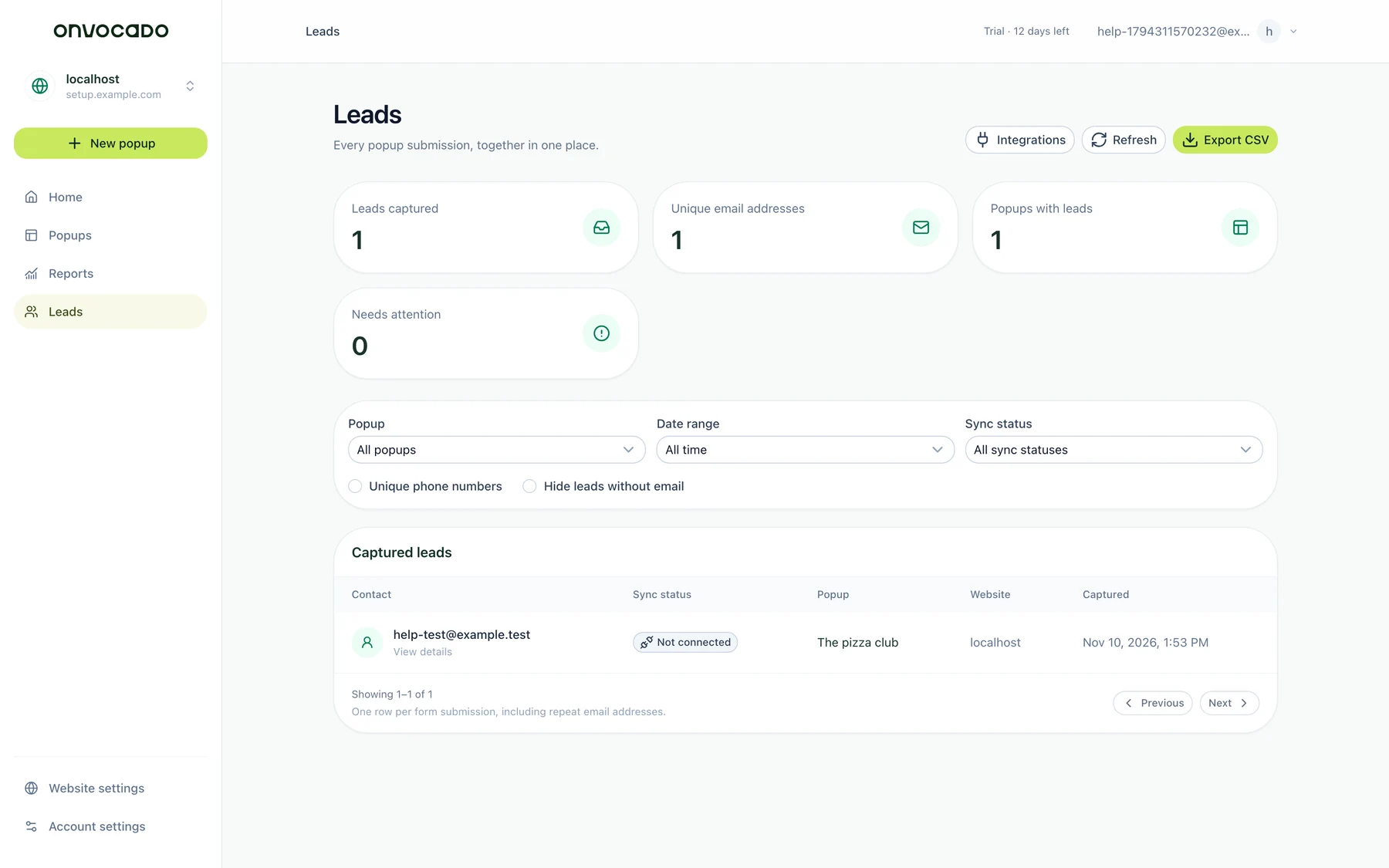
- Open Leads in the workspace and website used by the popup.
- Filter by popup, website, date and sync status. Check that your test submission is included in the selected period. Use CSV export for the filtered records.
- Open the submission’s delivery details. A saved lead can exist even when delivery to an external platform has failed.
- Check every destination separately. Confirm its account, list/group, required field mappings and automatic sending setting.
- For email subscription, check the selected consent field and any confirmation requirement. A contact update and a marketing subscription are distinct actions.
Back to help center
Leads & integrations
Find your leads and troubleshoot delivery
Separate form capture, external sync and subscription confirmation.
2 min read Reviewed Nov 10, 2026
01 Follow these steps
02 Understanding delivery status
Not connected means no destination is configured for that delivery. Queued/Processing indicates work is waiting or in progress; Accepted may mean the provider is still handling an asynchronous request. Completed describes the destination acknowledgement, not necessarily a confirmed subscription or a sent email. Failed deliveries show actionable status; fix the connection or mapping before retrying.
03 Check the result
Submit a uniquely named test through the installed, published popup, then find that record in Leads and in each intended destination. Builder preview submissions do not establish live storage or delivery. Each completed form is handled independently; do not assume typed but unsubmitted fields or abandoned steps are sent. Collecting a phone number does not activate SMS marketing.
04 If something is different
If the record is absent from Leads, check the actual published form and its submission, not only the integration account. If it is present but unsynced, use Settings → Integrations and Send leads to to inspect destinations. Email notifications and marketing follow-up are separate from lead storage: configure the intended message delivery in the tool that sends it. See webhooks and popup checks.
05 What the current app looks like
Was this article helpful?
Related articles
Send signed lead webhooks from Onvocado
Connect a receiver and understand the lead.created event, acknowledgement and retries.
Read article
Send new Onvocado leads to Zapier
Use Webhooks by Zapier with completed form submissions.
Read article
Send Onvocado leads to Make
Connect a custom webhook and map the actual submitted fields.
Read article
Didn't find what you need?
Our team is one message away. Expect a reply within a business day.
Contact support